Hosting a Session with Zoom
Hosting a Session with Zoom
Zoom is a powerful and popular tool used by event planners to host virtual sessions. PheedLoop supports fully functional integration with Zoom, which allows you and attendees to view and participate in Zoom meetings and webinars right from the Virtual Event Portal.
PheedLoop's integration allows attendees to automatically authenticate and join the Zoom meeting or webinar you are running. The Zoom interface even matches your event's color theme, so everything feels seamless!
Note: If you would like attendees to watch Zoom sessions directly within the PheedLoop Virtual Portal, you'll first need to create a Zoom General App in your Zoom account and connect it to PheedLoop (Step 1 below). This only needs to be completed once per Zoom account and takes approximately five minutes.
Step 1: Create the Zoom App (Optional, but recommended)
- Navigate to https://marketplace.zoom.us/user/build. Ensure you are logged in with the account that you will host the Zoom meetings/webinars with.
- If you are redirected to https://marketplace.zoom.us/ navigate to the Developer area in the bottom left of your screen to access the builder.
- Click Develop > Build App.
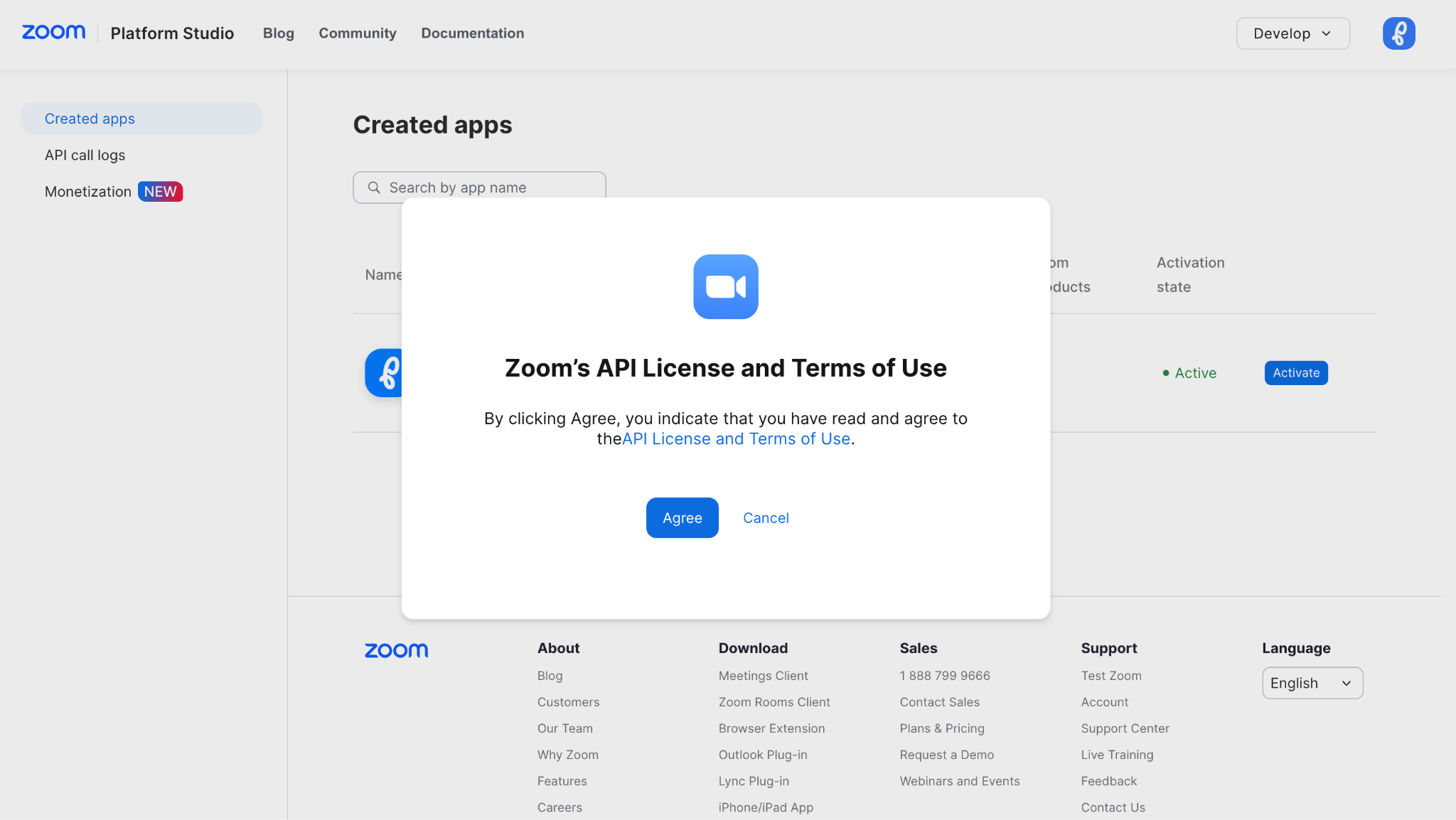
- Agree to Zoom’s API License and Terms of Use if/when prompted.
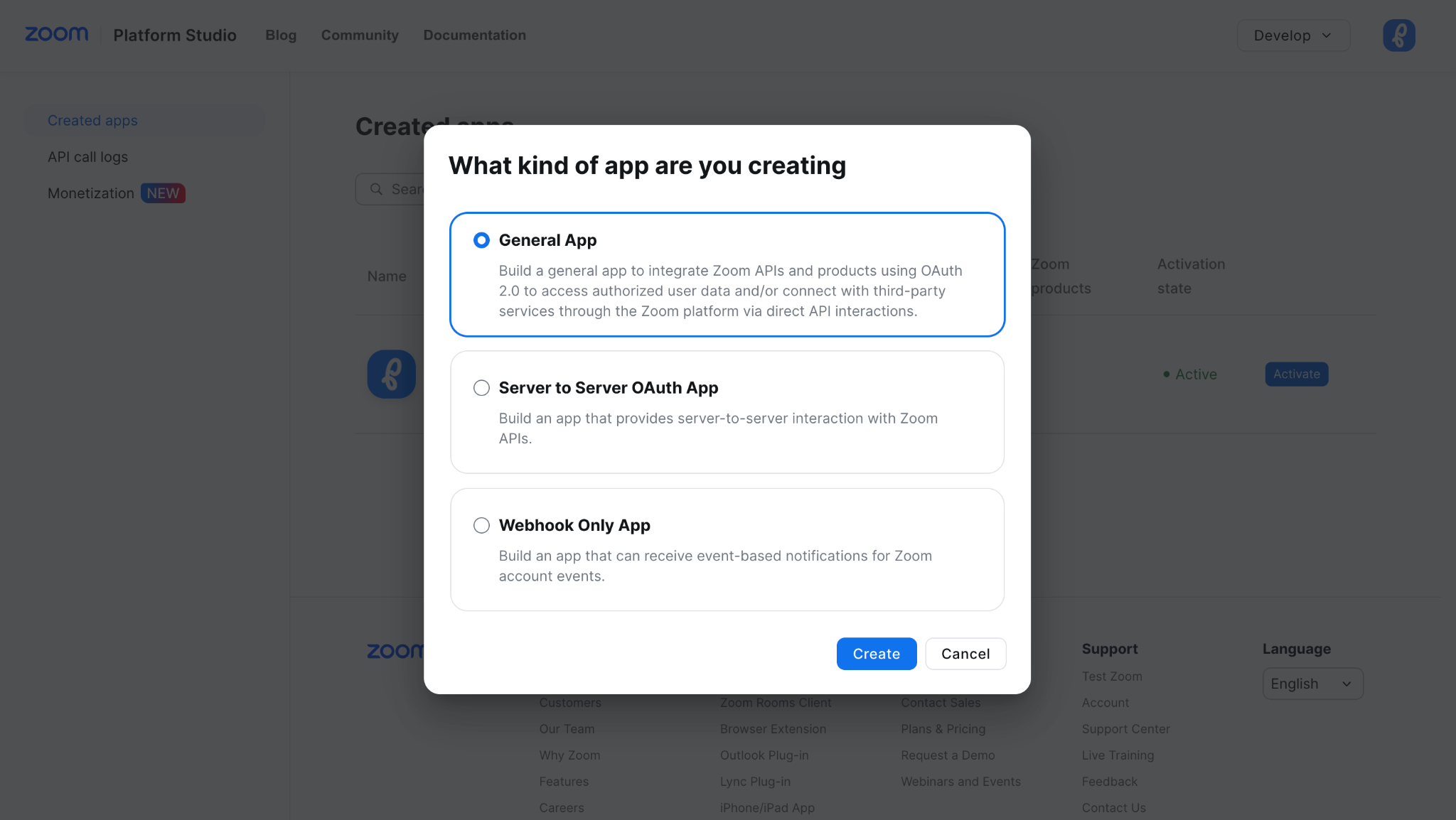
- Select “General App” when asked for the kind of app you are creating and click “Create”
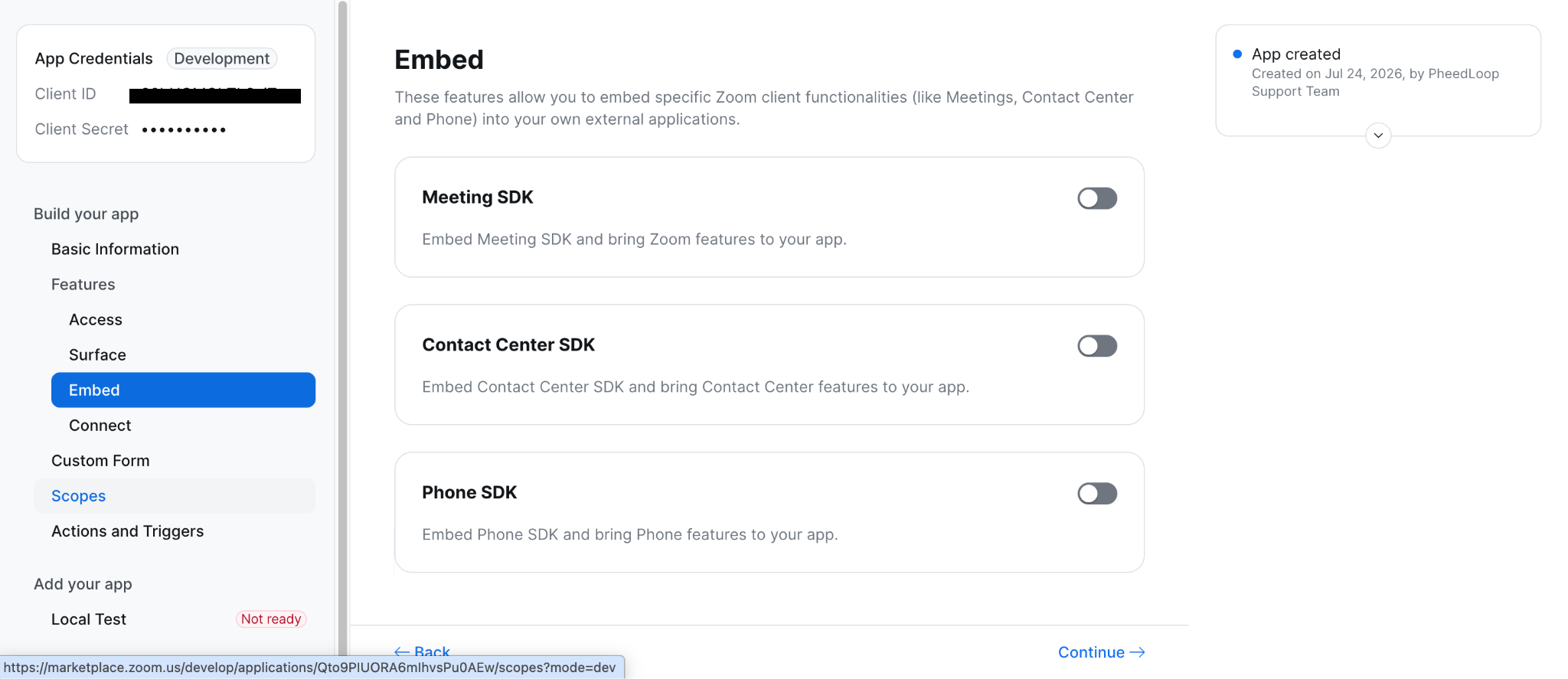
- Click into the Embed Feature on the left-hand side and toggle on “Meeting SDK.”
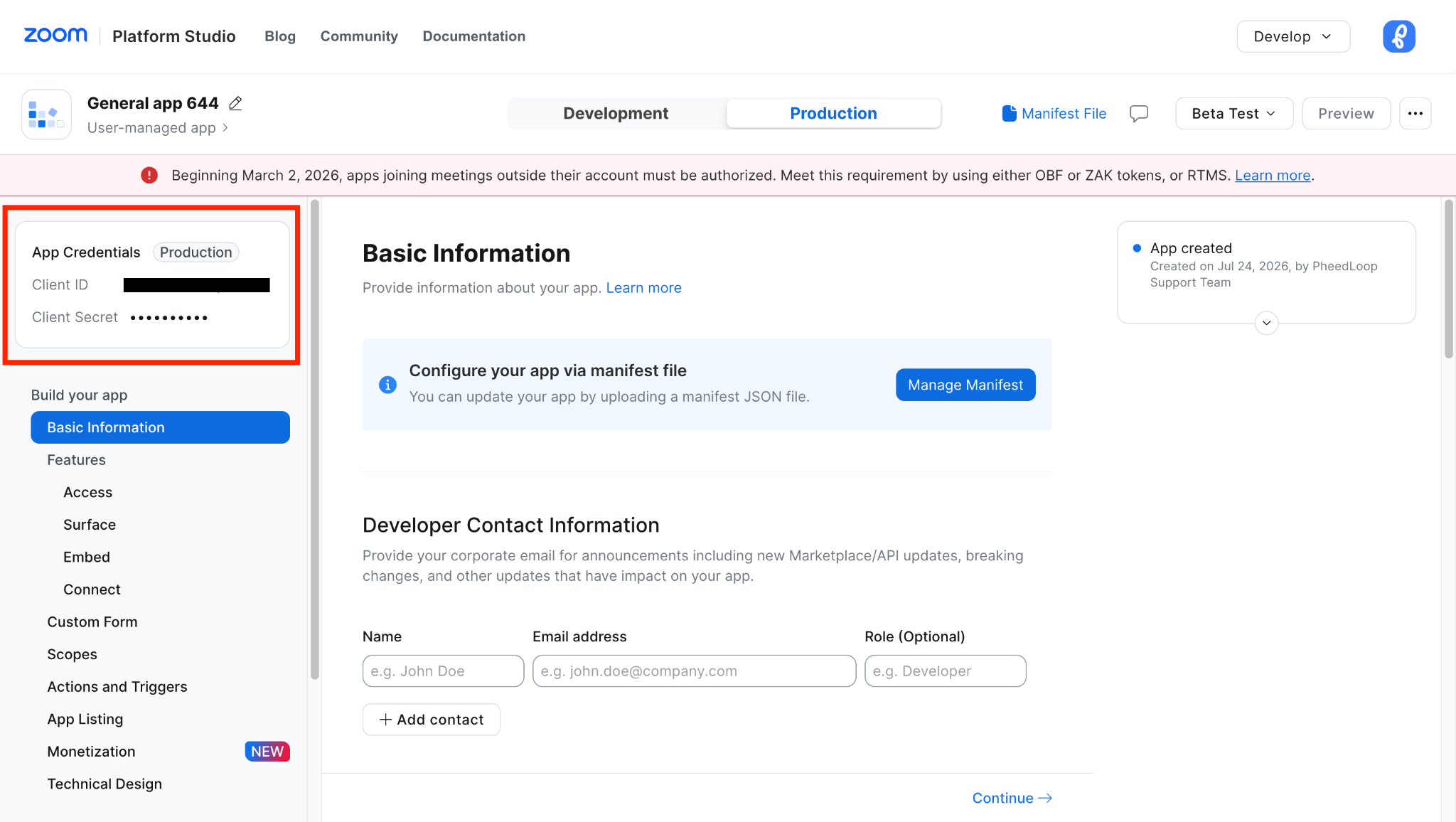
- Click into the Production tab at the top of your screen.
- Copy the App Credentials, which will be inserted into PheedLoop. Note: these credentials should be treated as sensitive information.
- Client ID
- Client Secret
- Navigate to your PheedLoop dashboard.
- Click the gear icon in the top right corner
- Settings
- Integrations
- Scroll to Session Integrations and click “Not Connected” on the Zoom panel.
- Paste the Client ID and Client Secret from Zoom into the PheedLoop pop-up. Click Submit.
- Click out of the Zoom tile and notice how the integration status is Connected.
Please note that if this step is not completed, attendees will not be able to view Zoom sessions embedded within the PheedLoop Virtual Portal. Instead, they will be redirected to join the session directly in Zoom. We strongly recommend completing this step to provide a fully embedded viewing experience and enable virtual attendance tracking.
Step 2: Zoom Meetings or Zoom Webinars?
The next step is to create either the Zoom Webinar or Meeting that you will use for your PheedLoop session stream. At a high level, a Zoom Meeting is ideal for a collaborative session where all attendees can contribute to a larger discussion with their audio/video. In contrast, a Zoom Webinar is ideal for a lecture-style session where attendees are primarily listening to one or more speakers delivering a talk/panel.
For a complete overview of the differences between meetings and webinars, visit this link. To learn how to schedule a Zoom meeting, visit this link and to learn how to schedule a Zoom webinar, visit this link.
Ideally, all of your Zoom Meetings or Webinars are recorded in case you'd like to upload these videos back into PheedLoop to make the sessions available on-demand. You can ensure recording is enabled in your Zoom settings. If you plan on having concurrent sessions for your event, note that you will need multiple host licenses from Zoom, as a single host can only host one Zoom session at a time.
For more information on setting up recordings for Zoom, visit this link.
Please note that if you are running a Zoom Webinar, please ensure that registration for your webinar is turned off, as webinars requiring registration do not work with the Zoom integration.
Step 3: Populating Your Session in PheedLoop with the Zoom Meeting/Webinar Details
Now that you have created your Zoom Meeting, you can add the meeting details to your session in the Event Dashboard.
- From the Event Dashboard, navigate to Sessions > Sessions and select the session you wish to adjust
- Scroll down to Virtual Settings
- Toggle on the Enable Stream checkbox if you are ready to start your stream
- Under the Meeting/Webinar ID field, enter the Meeting/Webinar ID for your Zoom meeting
- Under the Meeting Password field, enter the password for your Zoom meeting
- If entered, Attendees will be able to access the meeting without needing to enter the password. If this field is blank then Attendees will need to enter the password before accessing the Zoom meeting.
- Under the Direct Link field, enter the meeting URL if you would like to direct attendees to the Zoom app or browser
- Under the Phone Password field, enter the password for Attendees connecting in their phones
- If entered, Attendees will be able to access the meeting without needing to enter the password when joining with their phone. If this field is blank then Attendees will need to enter the password before accessing the Zoom meeting.
- Select Save Changes
If configured correctly, the Zoom meeting will now be available within the session for the Virtual Portal and PheedLoop Go.
We recommend toggling on Enable Stream temporarily for the session to ensure it works. For a live event, you'll want to enable the stream at the time when your session starts.
Please note, we do not recommend using Zoom's spotlight feature for more than four individuals. This is to ensure that your presenters are displayed correctly in the PheedLoop.
Step 4: Test the Integration
You've finally made it, the last step! Start the Zoom Meeting or Webinar you created in the native Zoom app (we typically recommend moderators and speakers use the native Zoom app to start and join the meeting or webinar) and ensure you're out of practice mode if you're running a Zoom Webinar (i.e. the webinar or meeting should be live and running).
- From the Virtual Portal, navigate to Sessions
-
Select the Session you wish to test
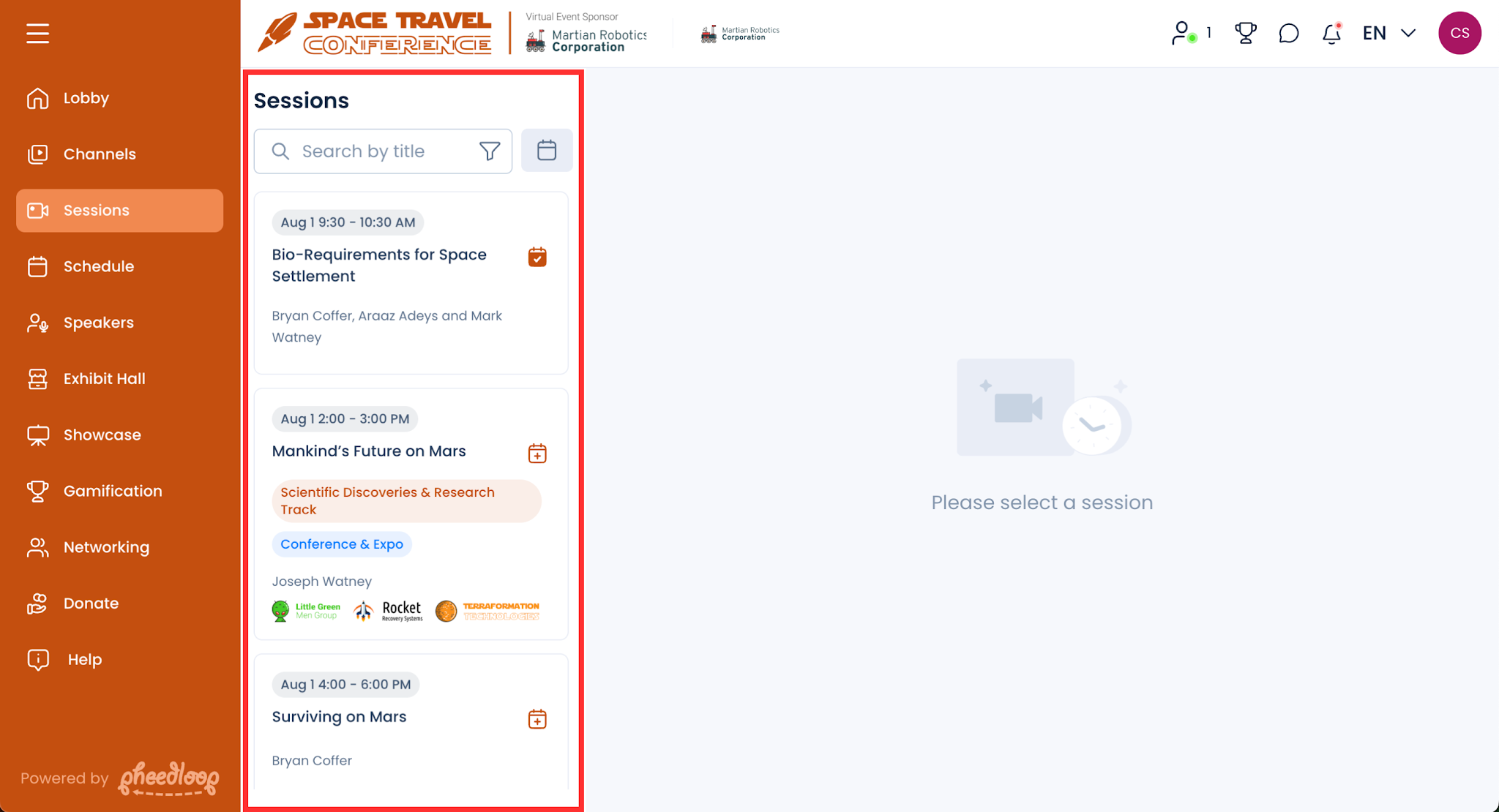
The session should now display the Zoom meeting. If you did not opt to configure the Zoom app in Step 1, the Zoom stream will be available once users click the Call-to-Action button in the Zoom window.
Please note we do not recommend using Zoom's spotlight feature for more than four individuals. This is to ensure that your presenters are displayed correctly in the PheedLoop.
Like with any other technology, when first getting it going, there may be some troubleshooting required. In the Zoom integration's case, they are typically caused by very basic issues such as getting the meeting/webinar ID or password wrong, or simply not starting the correct Zoom session. We've listed a few common troubleshooting and frequently asked questions here.
Frequently Asked Questions
Where do speakers log in to conduct their speaking engagement when using the Zoom integration?
- Speakers are always recommended to log in to the Zoom desktop app to conduct their speaking engagement. We do not recommend logging into PheedLoop to avoid any echoes. Additionally, by logging into Zoom directly, you will be able to get the best streaming quality and will be able to leverage some of Zoom's advanced features, such as Live Polling and Q&A.
What advanced features are supported within the Zoom integration?
- Zoom is constantly updating its integration with PheedLoop. Some of the features that are currently supported within the integration are: Breakout Rooms, Live Polls, Q&A, and Interpretations. As the event admin or speaker, you must initiate these features from the native Zoom desktop app.