How to Access the Virtual Portal as an Event Admin
Both Event Administrators and Attendees who have been added to the Event Dashboard can access the Virtual Portal. This guide will walk you through how to log in to the Virtual Portal as both an Event Admin and using an Attendee's profile.
Contents
- Logging in the Virtual Portal as an Event Administrator
- Logging in the Virtual Portal with an Attendee Profile
- Conclusion
Logging into the Virtual Portal as an Event Administrator
-
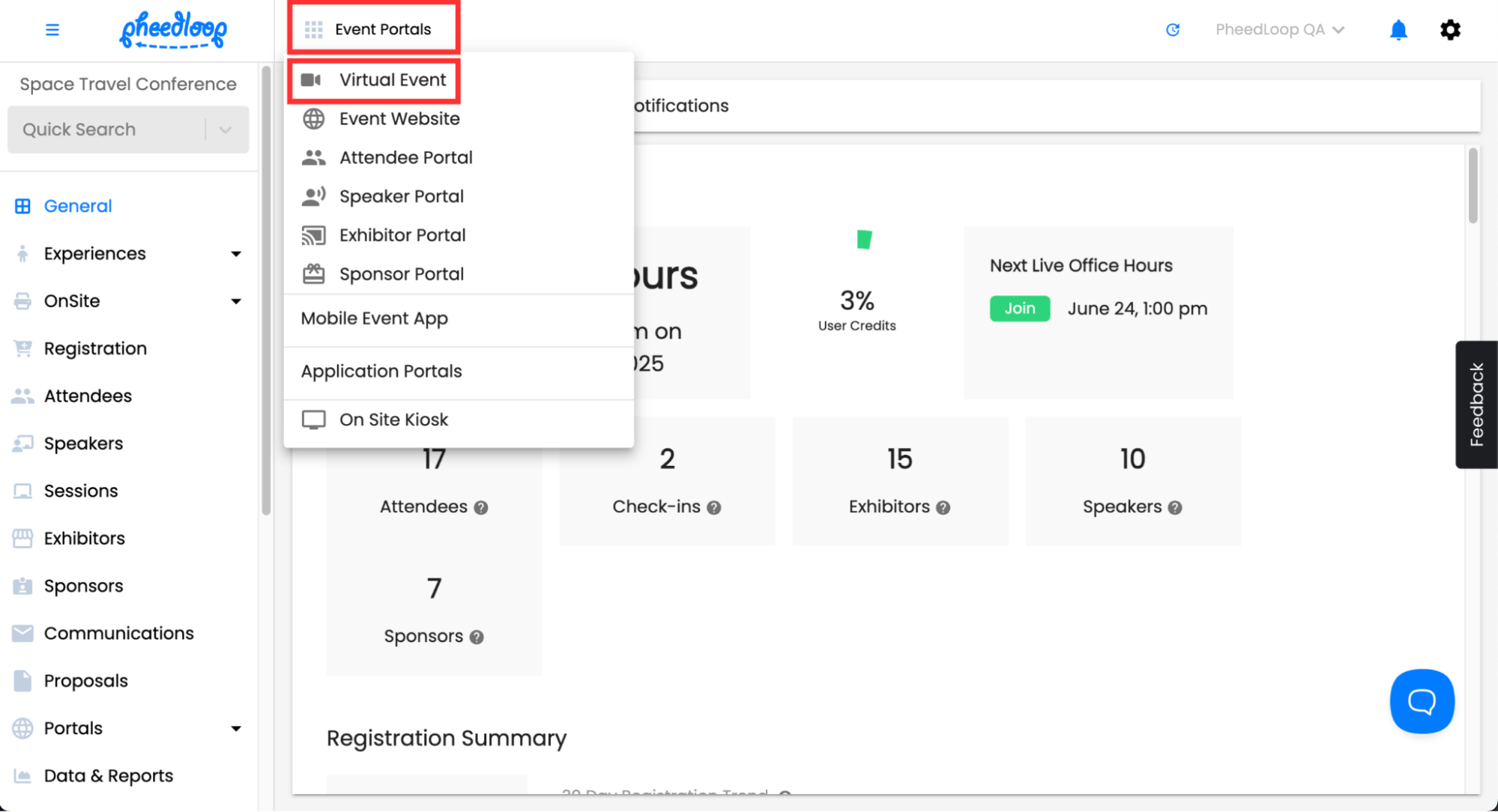
From the Event Dashboard, navigate to Event Portals > Virtual Event
- Enter your login credentials under the Email and Password fields
- If you have forgotten your password, please select Forgot Password? to reset it.

- Once authenticated, you will be directed to the Virtual Portal.

Logging into the Virtual Portal with an Attendee Profile
Event Administrators can log in to the Virtual Portal as an attendee with the Temporary Password feature.
- From the Event Dashboard, navigate to Attendees > Attendees
- Select the attendee you wish to log in with

- Select View Temporary Password

- Copy the password under the Temporary Password field

- Navigate to Event Portals > Virtual Event
- Enter the Attendee's login credentials under the Email and Password fields
Conclusion
Accessing the Virtual Portal is simple for both Event Administrators and Attendees who have been added to the Event Dashboard. After reading this article, you should understand the standard login methods used for the Virtual Portal.