Segmenting and Restricting Announcements to Recipients
PheedLoop's announcements system possesses the ability to segment your attendee-base by tags and tickets. Please note, tickets are only applicable if you are using PheedLoop's built-in registration system.
When setting up targeted tags or targeted tickets for an email communication, the system follows specific logic to determine which attendees receive the message.
If multiple targeted tags are selected, the system uses “OR” logic within that group. This means attendees who have any of the selected tags will receive the communication. For example, if “Tag A” and “Tag B” are chosen, attendees with either Tag A or Tag B will receive the email. The same applies to targeted tickets and sessions.

However, when both targeted tags, targeted tickets and targeted sessions are configured, the system applies “AND” logic across the three categories. In this case, only attendees who meet all the criteria will receive the communication.

In short, the system uses “OR” logic within each targeting type and “AND” logic when different targeting types are configured.
To segment announcement recipients based on tags, tickets, and/or sessions
- From the Event Dashboard, navigate to Communications > Announcements
- Select the email you want to edit from the list
- Scroll down to Target Settings
- Use the following fields to define your audience:
- Targeted Tags: Select attendees with specific tags you want to notify.
- Targeted Tickets: Choose ticket types to notify their holders.
- Target Sessions: Notify attendees who have the specific session(s) in their schedule.
-
Select Save Changes
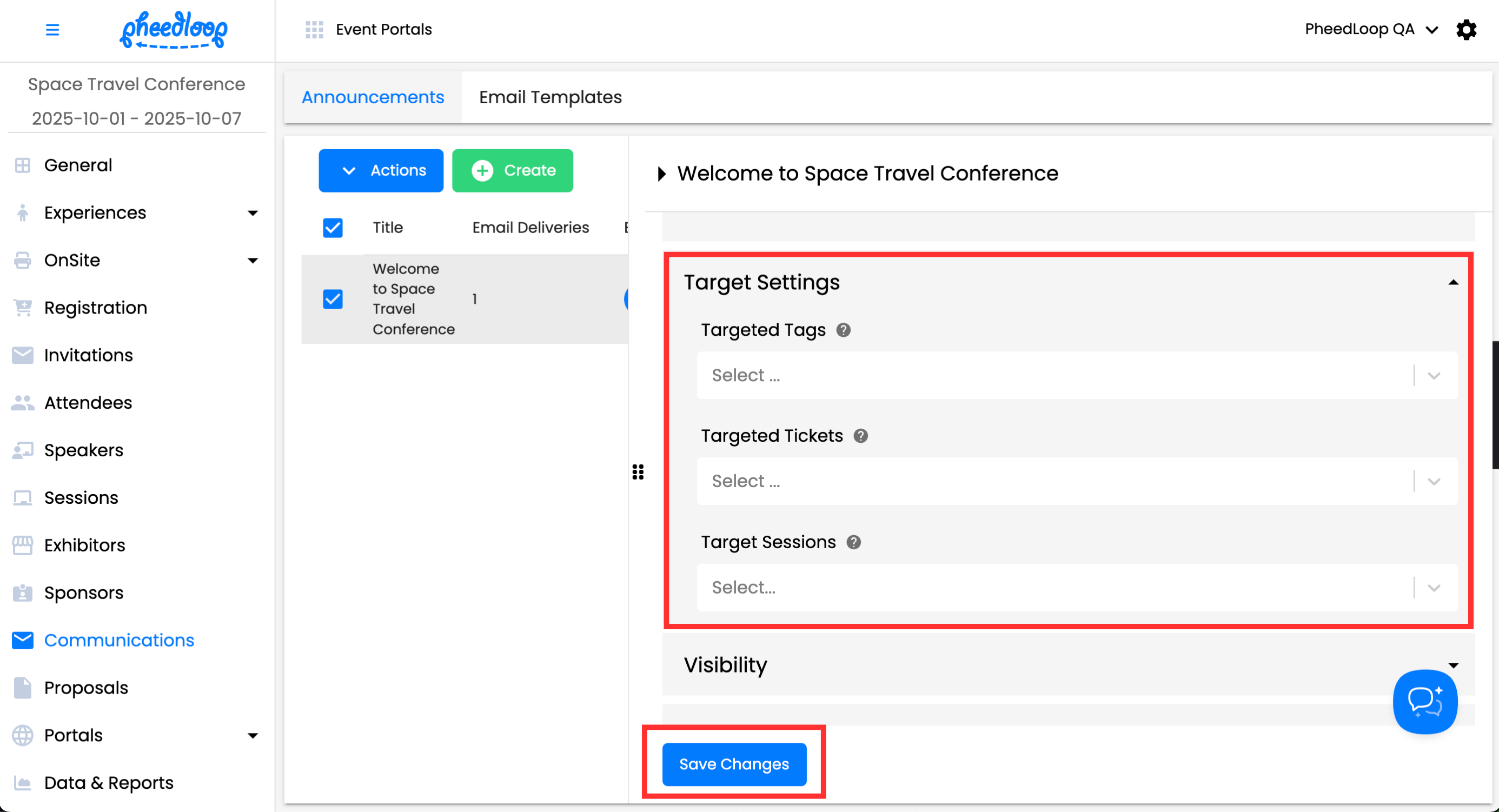
Please note, this does not segment who sees the announcement if you are showing the announcement in one of your portals. This is only applicable to the deliveries of the announcement as an email or push notification and is typically used by events only for communication, not display purposes.
Targeting Attendees by Ticket Quantity
The Minimum Quantity Held field narrows a ticket-based announcement to attendees who hold more than one of the same ticket. Use it when the people you need to reach are the attendees who purchased a block of tickets — for example, a group leader who has not yet transferred tickets to the rest of their group.
The threshold applies per ticket type. If you set it to 2, an attendee must hold at least 2 of the same targeted ticket to receive the announcement. An attendee holding 1 of Ticket A and 1 of Ticket B does not meet a threshold of 2, even when both tickets are selected under Targeted Tickets.
Keep the following in mind when setting a threshold:
- The threshold only applies when at least one ticket is selected under Targeted Tickets — with no tickets targeted, the field has no effect
- A threshold of 1 targets every holder of the selected tickets, which matches the behavior of targeting tickets on their own
- Tickets with a transfer request that has not yet been accepted are not counted toward an attendee's quantity, so an attendee who has already sent their tickets out drops below the threshold
- Canceled tickets are not counted toward an attendee's quantity
- The recipient list is calculated at the time the announcement is sent, not when you save it — attendees who transfer their tickets before the send time will not receive it