Restricting Access to Sessions Based on Tags and Tickets
Whether attendees need a paid registration, the session is only for a specific group, or limited spot availability, there are a vast number of reasons you may want to restrict access to sessions for your event. In these use cases, a simple toggle is not enough to curate sessions for your attendees, especially those you want to register for your event.
Instead, PheedLoop has a built-in tag and ticket restrictions/exclusions setting that allows you to segregate attendees with minimal input. Set up accessibility based on the required tag or ticket and the system automatically filters sessions in PheedLoop.
Here is how restricted access works across our platforms:
| Area | Tag/Ticket Restrictions (if the attendee does not own the selected ticket or tag) | Tag/Ticket Exclusions (if the attendee owns the selected ticket or tag) |
|---|---|---|
| Virtual Event Portal | The session will appear, but the attendee cannot register or access it. | The session will appear, but the attendee cannot register or access it. |
| Mobile Event App | The session is hidden from the attendee. | The session is hidden from the attendee. |
| Event Portal | The session will appear, but the attendee cannot register or access it. | The session will appear, but the attendee cannot register or access it. |
| Registration Selection Step | The session will appear, but the attendee cannot register or access it. | The session will appear, but the attendee cannot register or access it. |
| Event Website | This setting will not impact the Event Website beyond the registration process. Please use the Hide Session in Website checkbox instead. | This setting will not impact the Event Website beyond the registration process. Please use the Hide Session in Website checkbox instead. |
1. Ticket Restrictions
In order for this form of restricted access to work, you must own the Registration & Ticketing + Event Website Module and have tickets created. If you are not using our registration system, please create tags to restrict access to sessions.
Restricting access based on tickets associated with an attendee’s account is a great way to bridge the PheedLoop registration experience with access to select sessions. Depending on what ticket(s) an attendee has associated with their profile, they are allowed into certain sessions.
- From the Event Dashboard, navigate to Sessions > Sessions
- Select a session you would like to restrict tickets for from the list
- In the session editor form, scroll down to Advanced Settings
- Under Ticket Based Restrictions, select the ticket(s) that would be necessary for attending the session from the list
-
Select Save Changes
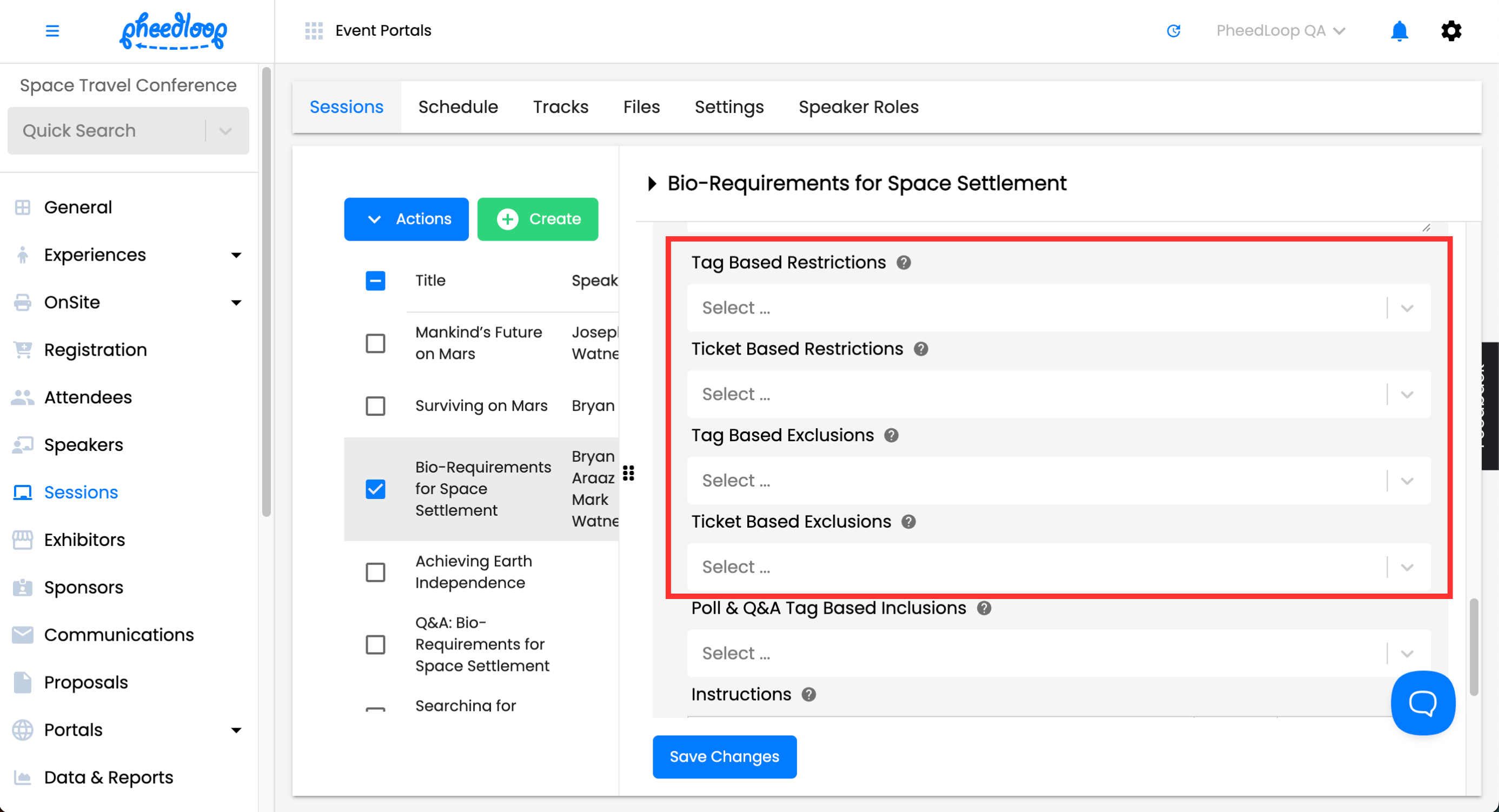
For example, if Session A has a restriction for Ticket A then that means ONLY people who have Ticket A in their profile will be able to access this session.
2. Tag Restrictions
Most events rely heavily on tags to segment communication, promote filtering for badges on-site, and for internal data management. Tag restrictions can also be combined with ticket restrictions and vice versa, which means any one of the conditions is required to view the session.
2 (A). Create a Tag:
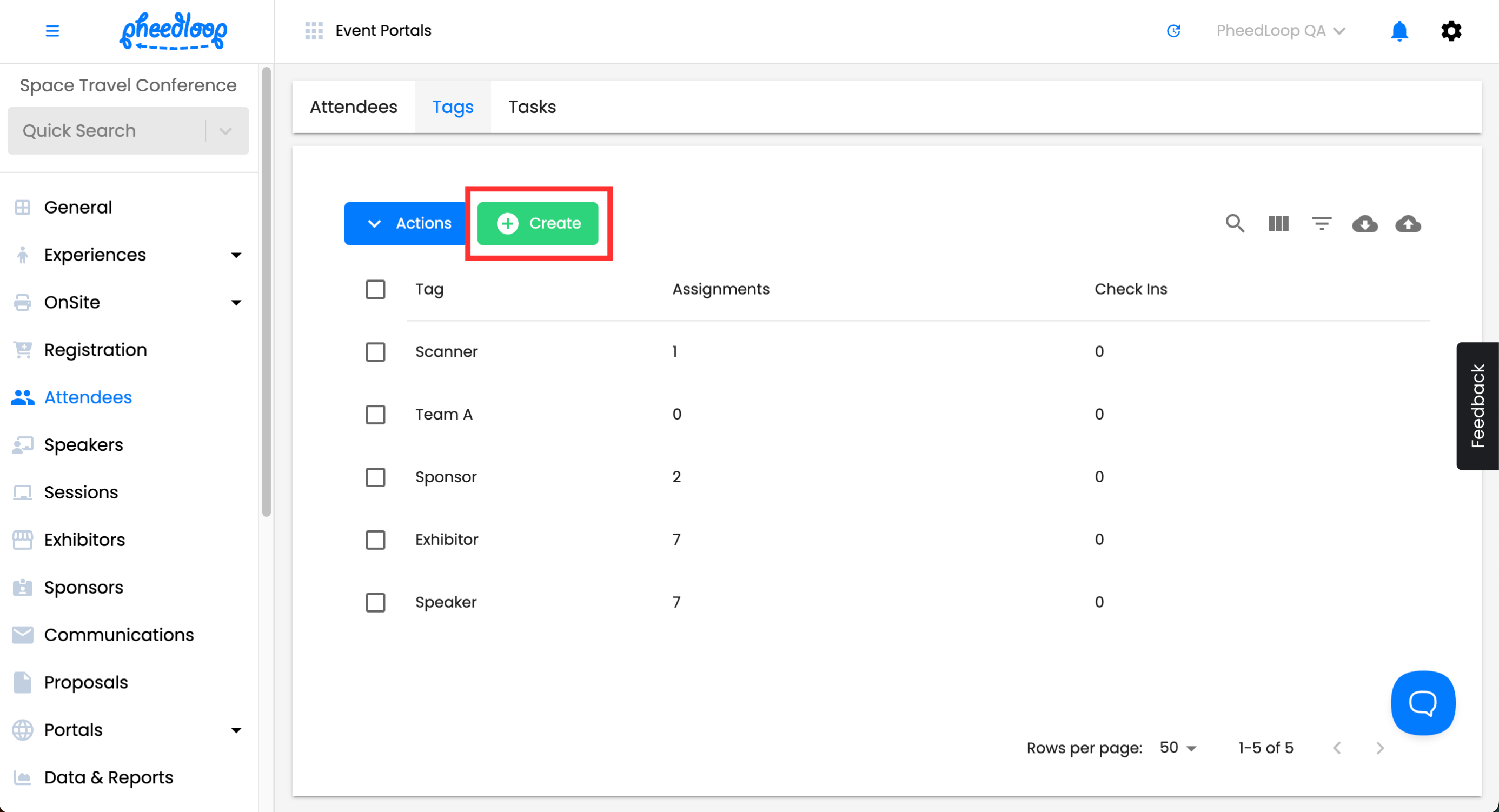
- From the Event Dashboard, navigate to Attendees > Tags
-
Above the tag table, select Create
-
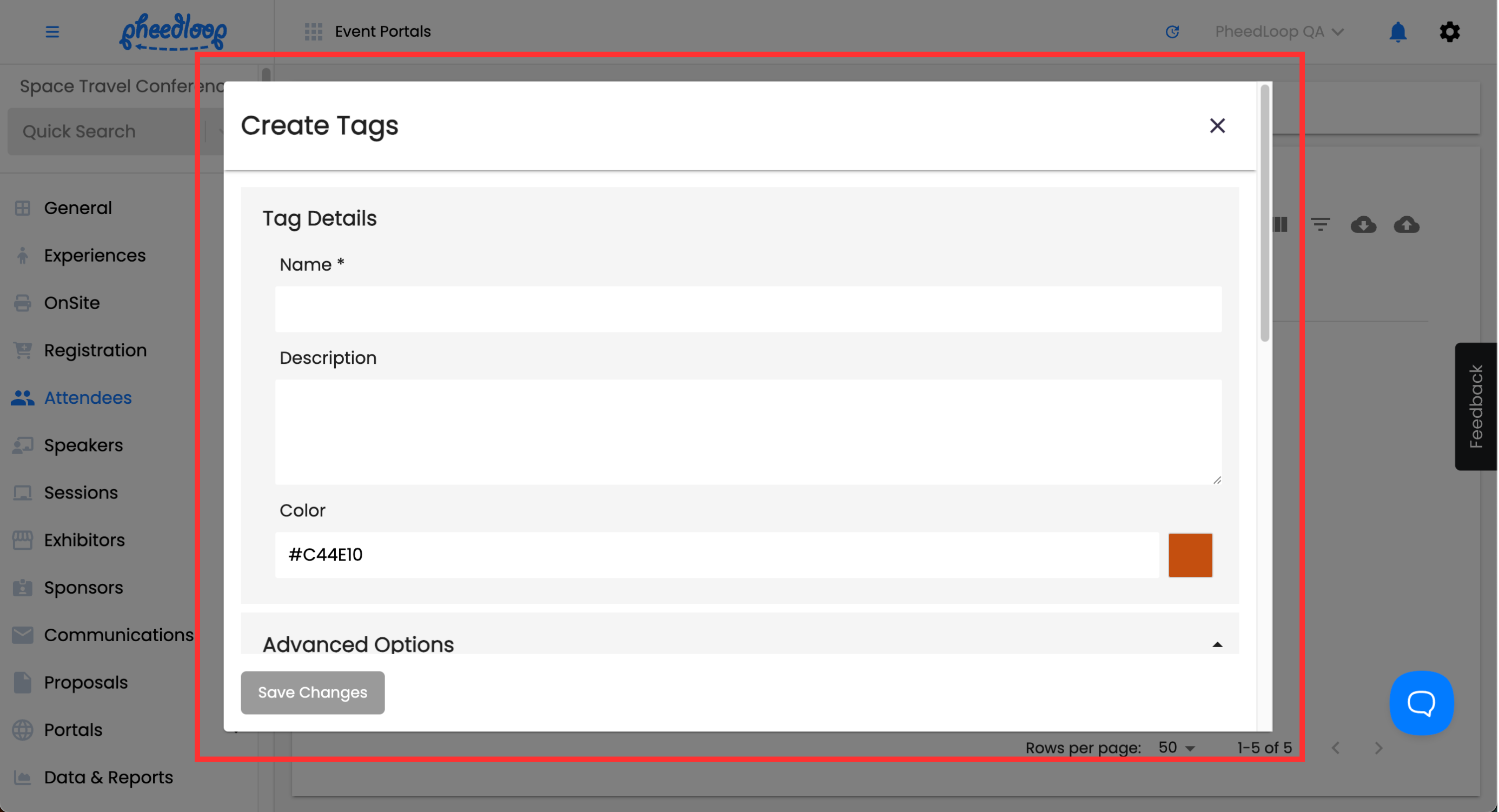
Fill out the Name field and other details you desire
2 (B). Enable Tag Based Restrictions:
- From the Event Dashboard, navigate to Sessions > Sessions
- Select the session you would like to restrict tags to from the list
- In the session editor form, navigate to Details > Advanced Settings
- Under Tag Based Restrictions, select the tag(s) that would be necessary for attending the session from the list
-
Select Save Changes
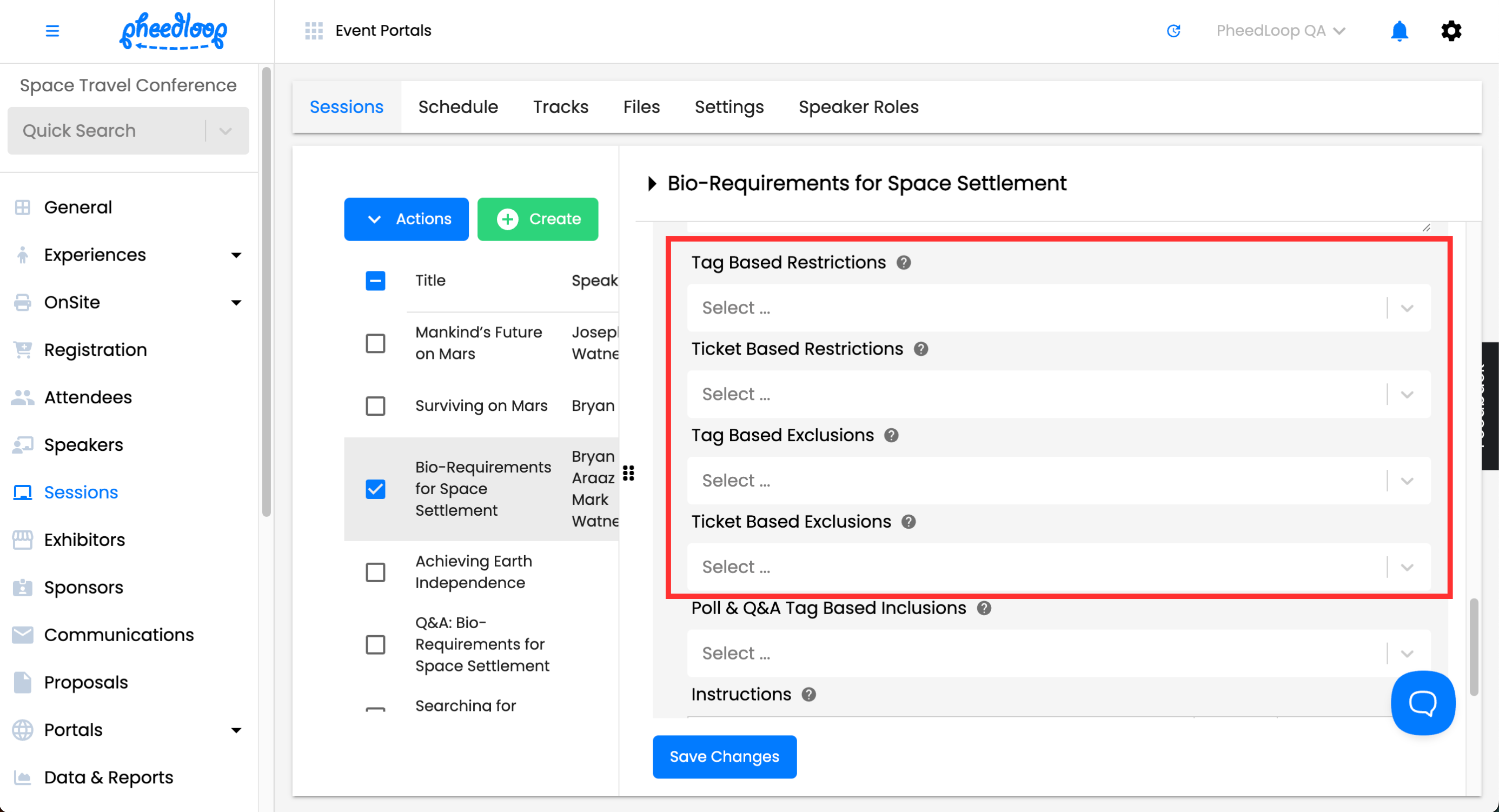
For example, if Session A has a restriction for Tag A then that means ONLY people who have Tag A in their profile will be able to view and access this session.
3. Exclusions
The exclusions feature is similar to the restrictions feature, as it allows for targeted tickets and tags to be excluded from the intended session. Unlike restricting, where you have the option to limit the session to specifically chosen tickets/tags, exclusions allow you to target tickets/tags that cannot view the session entirely.
Exclusions ensure attendees can access a session only if they do not have the selected ticket or tag. Attendees not affected by the tag or ticket restrictions/exclusions will be able to view the session and add it to their schedule, while those that do cannot.
Exclusions for tickets and tags have the same step-by-step process as restrictions and can be found underneath the Ticket Based Restrictions or Tag Based Exclusions under the Advanced Settings section.

3 (A). Poll & QA Tag Based Inclusions
The Poll & Q&A Tag-Based Inclusions setting also limits access to Advanced Networking features in the event app and virtual portal to only those attendees with the appropriate tags.
- From the Event Dashboard, navigate to Sessions > Sessions
- Select the Session you wish to adjust from the list
- Scroll down to Advanced Settings
- Under the Poll & QA Tag Based Inclusions field, select the tag you wish to use
-
Select Save Changes
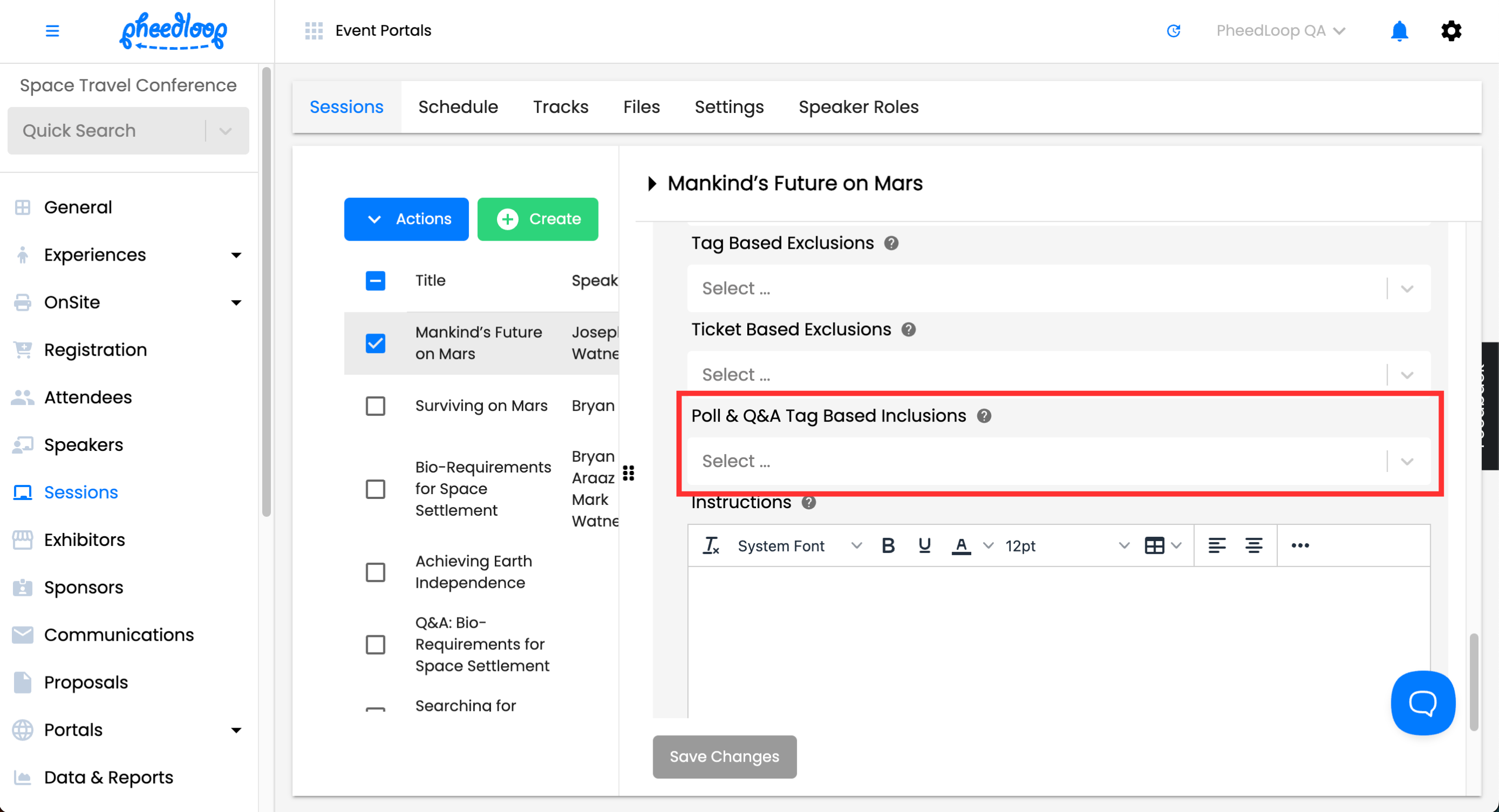
Attendees without the tag will not be able to see the Polls or Questions and Answers section in the Virtual Portal and PheedLoop Go!.
4. Testing Restrictions/Exclusions
4 (A). Virtual Event Portal:
-
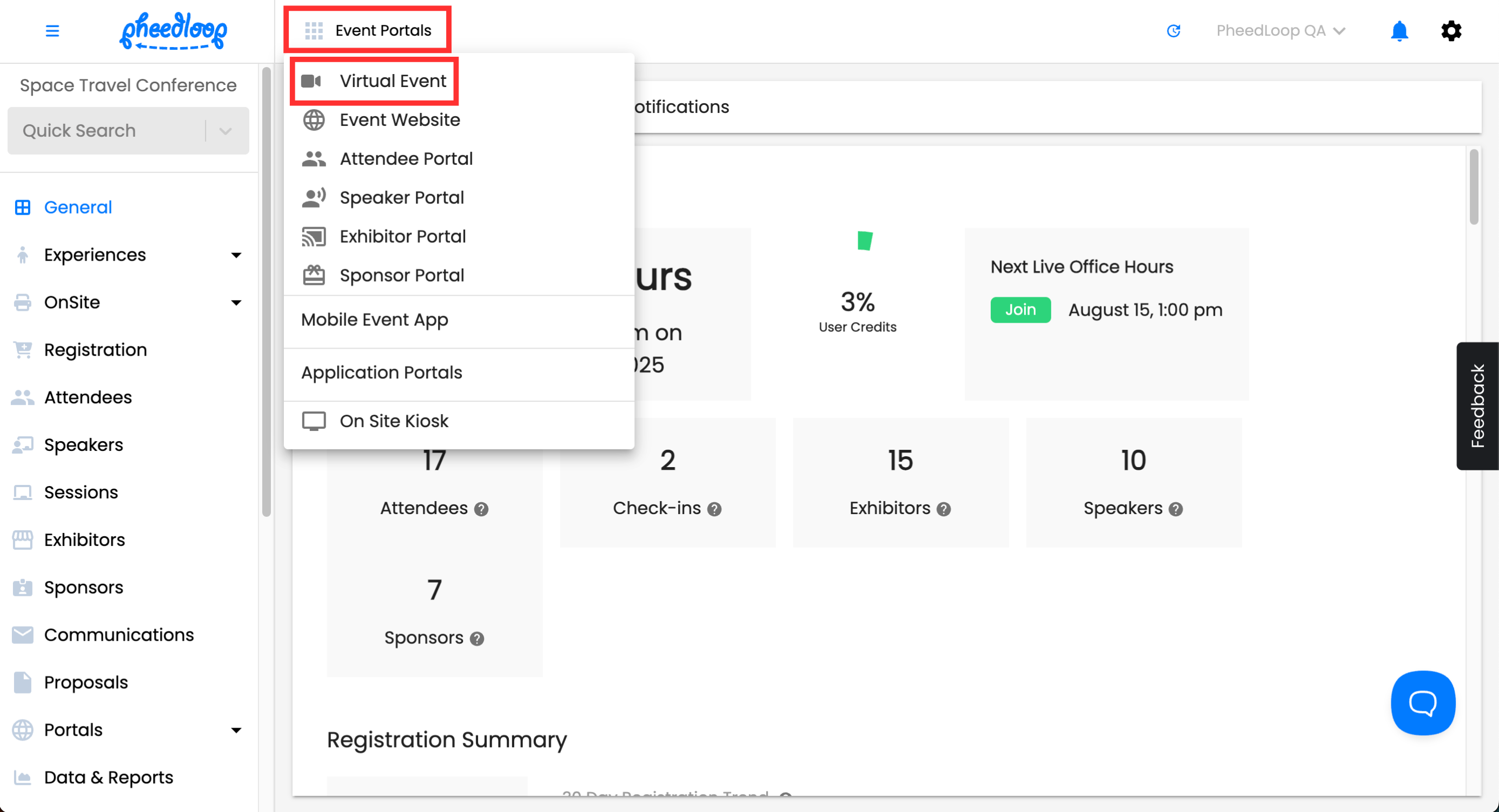
From the Event Dashboard, navigate to Event Portals > Virtual Event
- Login as one of the attendees which has a restricted ticket or tag
- From the left hand side navigation menu, select Sessions
- Select the session with the restricted ticket or tag
If restrictions or exclusions are set up correctly, attempting to access a restricted session with an attendee profile that meets those conditions should trigger a message denying access.

4 (B). Mobile Event App:
-
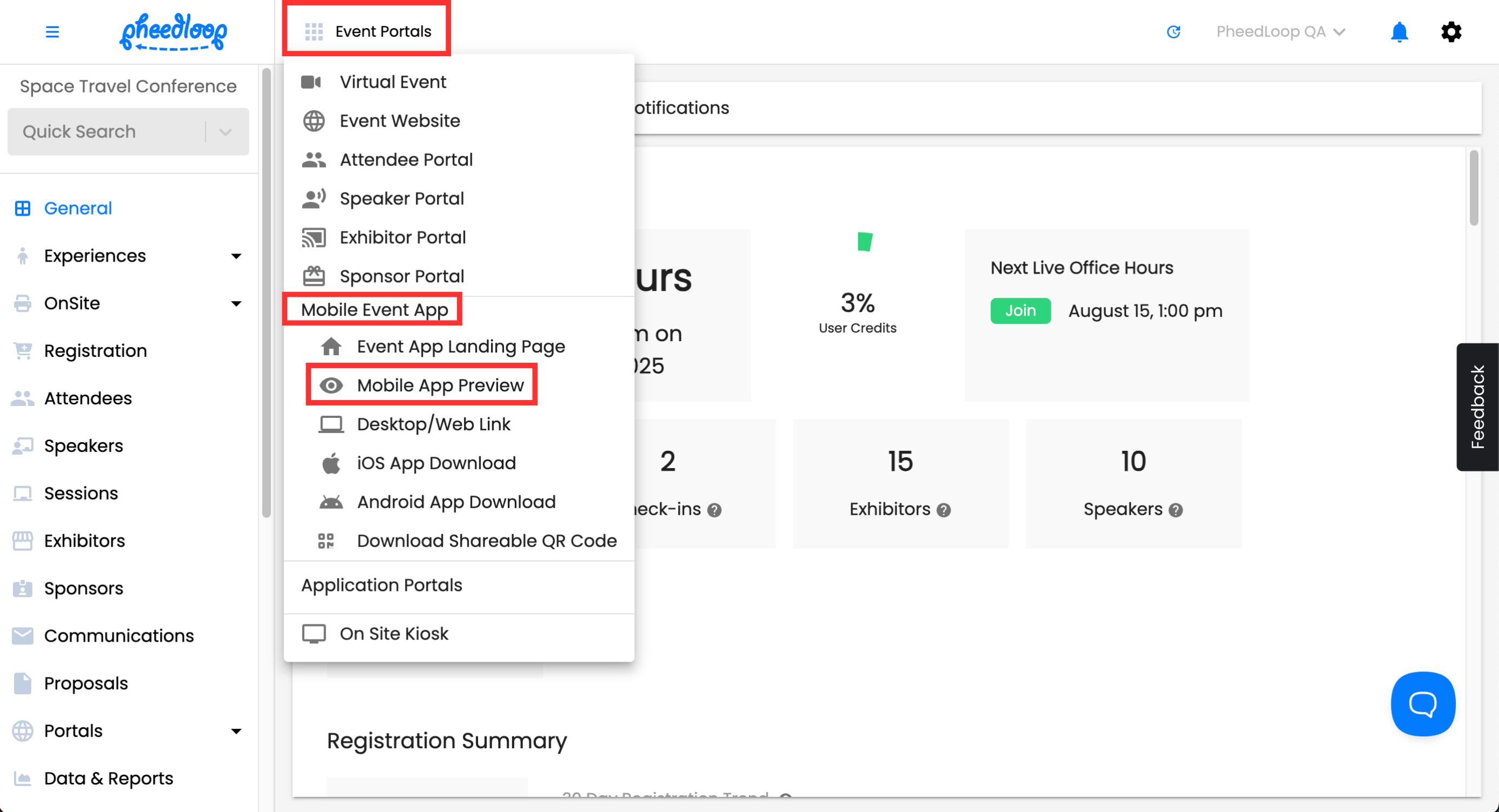
From the Event Dashboard, navigate to Event Portals > Mobile Event App > Mobile App Preview
- Login as one of the attendees which has a restricted ticket or tag and access your event
-
Select Schedule
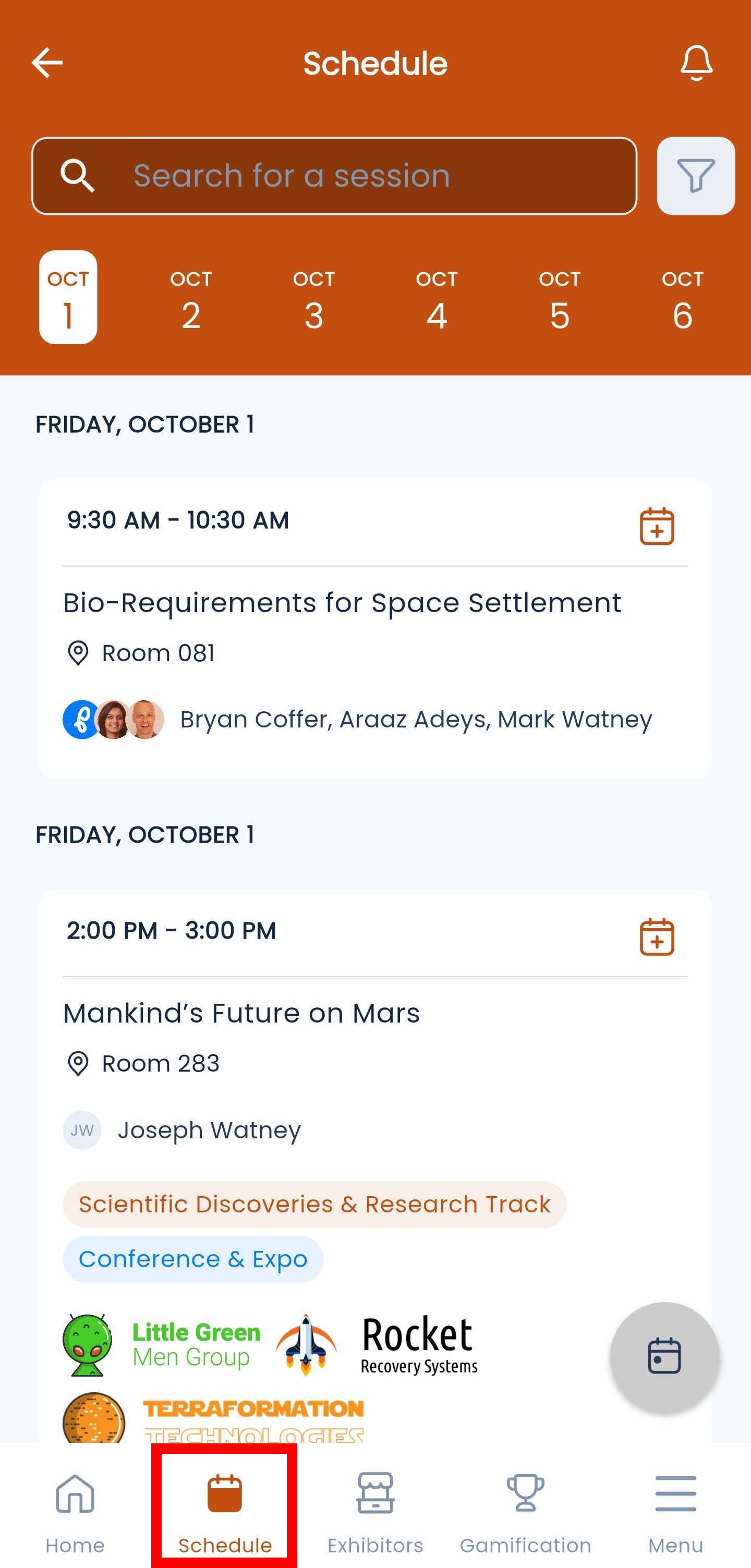
If the restrictions/exclusions have been executed correctly, attendees will not be able to see the session at all from the Event App.
Please note, if you are trying to access a session that has restrictions on it and you are logged in with your event admin account, the restrictions will not affect you as administrators have unrestricted access to all content.