Enabling Schedule Selection within the Event Portal, Event App, & Virtual Portal
Enabling Schedule Selection via the Event Portal
- From the Event Portal, navigate to Event Portals > Attendee Tools
- Ensure that Hide Schedule Selection is not toggled on. This will make Schedule Selection visible and accessible to Attendees in the Event Portal.
- On a per-Session basis, ensure that Enable Pre-Registration is toggled on under Sessions > select the desired Session > Options.
Using Schedule Selection via the Event Portal
To access Schedule Selection from the Event Portal, navigate to Schedule > Schedule Selection. All Sessions eligible for registration will populate here.

Using Schedule Selection via the Event App
Schedule selection in PheedLoop is synced across all portals. Whenever you add or remove a session to your schedule, you are able to use any portal to do so.
- From the Mobile Event App, navigate to Schedule
- Select the session you would like to add or remove from your schedule from the list
- Select Add to Schedule
-
Select Remove if you have the session added but would like to have it removed.
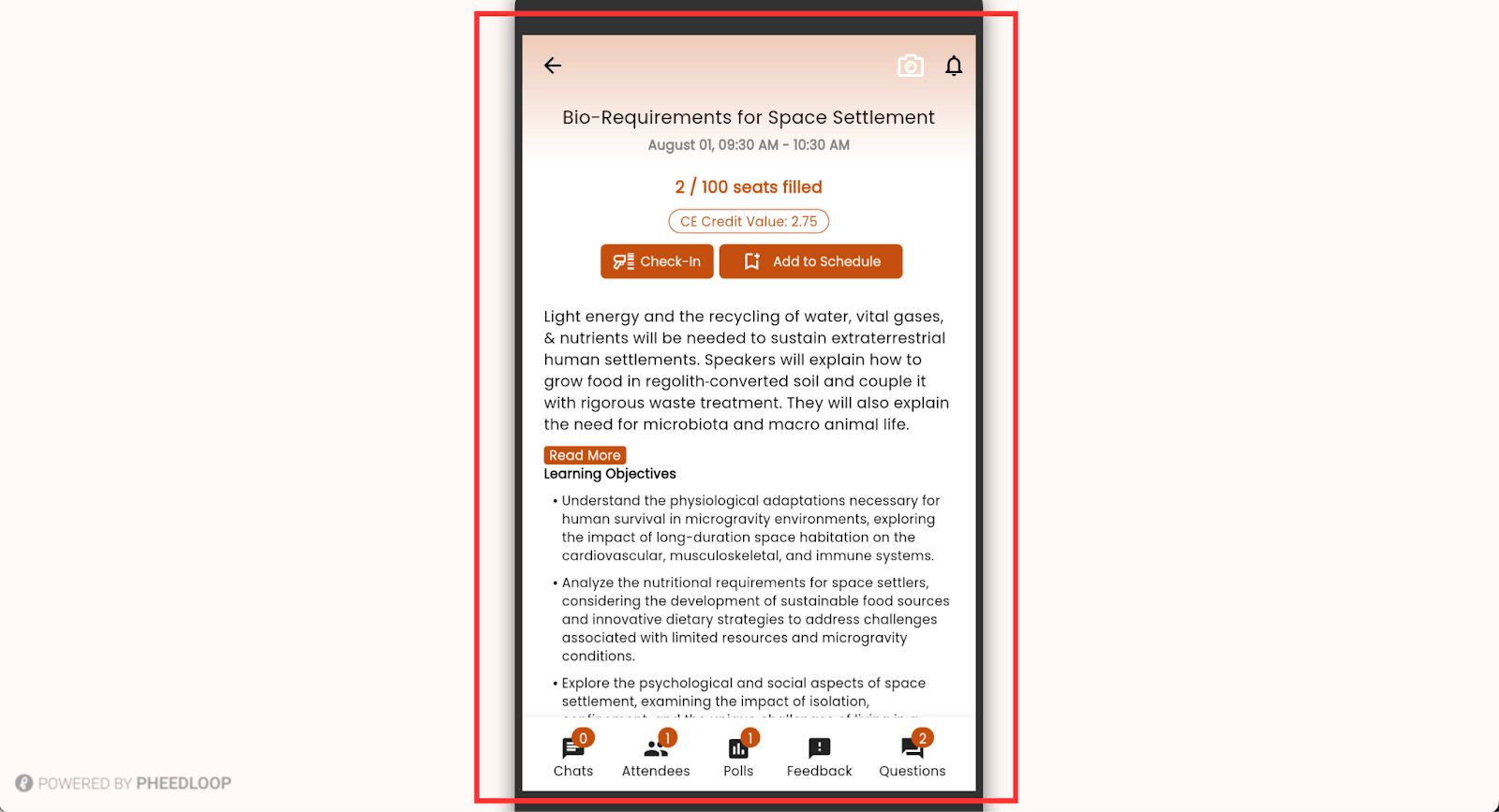
Quick Tip: If you would like to remove the schedule selection from the event app, from the Event Dashboard, navigate to Sessions > Sessions. Select a session from the list, under Event App Settings, toggle off the Enable Add To Schedule checkbox.
Using Schedule Selection via the Virtual Portal
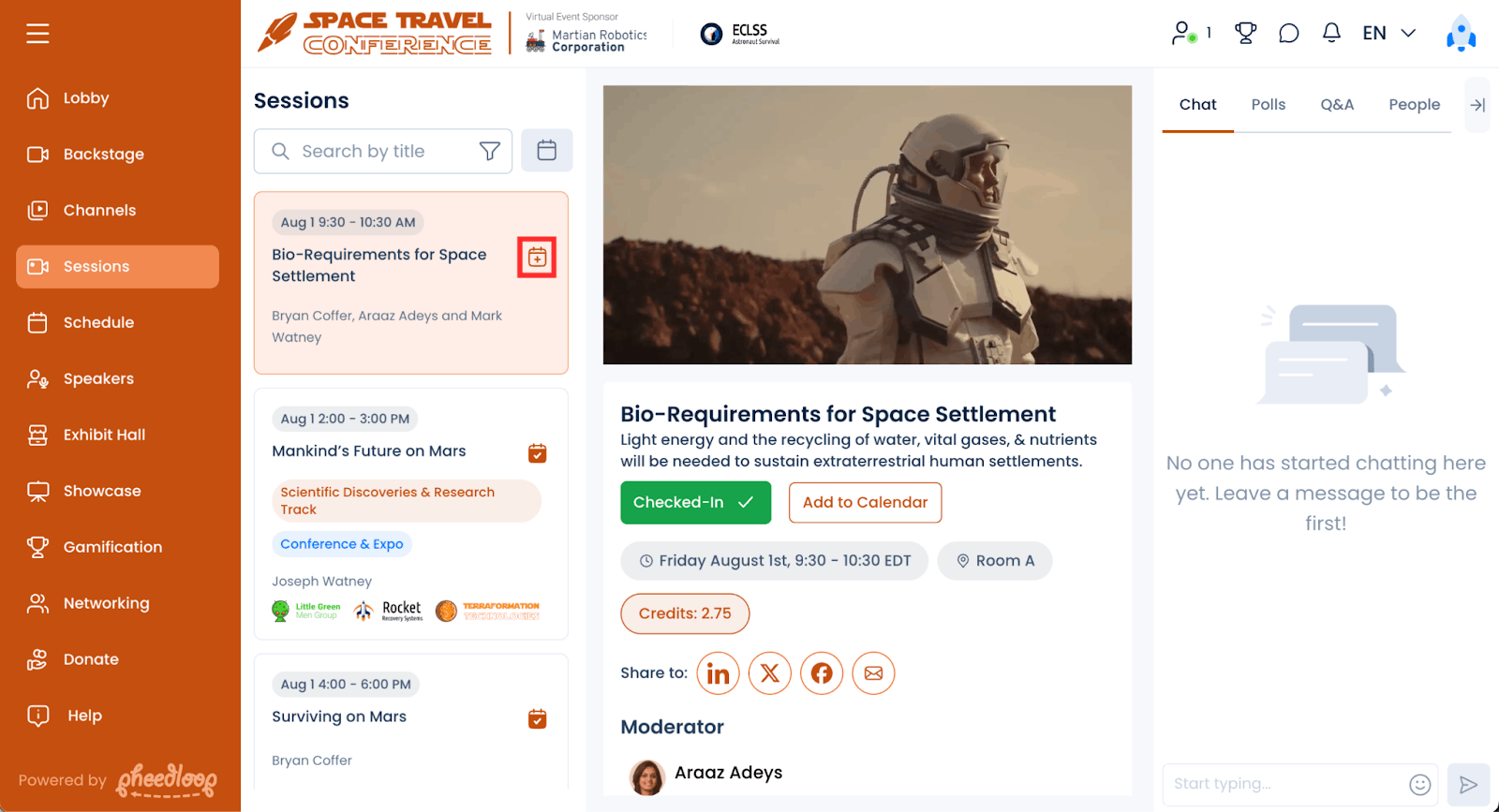
- From the Virtual Event Portal, navigate to Sessions
- Select the box icon with a plus beside a session from the list
-
Navigate to Sessions and select the calendar icon next to the session title