Managing and Conducting a Refund in Stripe
For instrucitons on refunding other forms of payment, please review our Issuing Refunds in the Event Dashboard article.
PheedLoop allows you to process refunds from the Event Dashboard. However, payment processor transaction fees (such as those charged by Stripe, PayPal, or Bambora) are not accounted for in PheedLoop's dashboard. If an attendee requires a refund of these fees, the refund must be processed directly from the payment processor.
This article covers both methods: processing refunds from the Event Dashboard and directly through Stripe.
Conducting Refunds in the Event Dashboard
This is the simplest way for Event Planners to process a refund, provided the registrant is aware that they will not receive a refund for Stripe's transaction fees. If the registrant accepts that the transaction fee will not be refunded, you can proceed using the Event Dashboard.
- From the Event Dashboard, navigate to Registration > Orders
-
Select the order to be refunded from the list
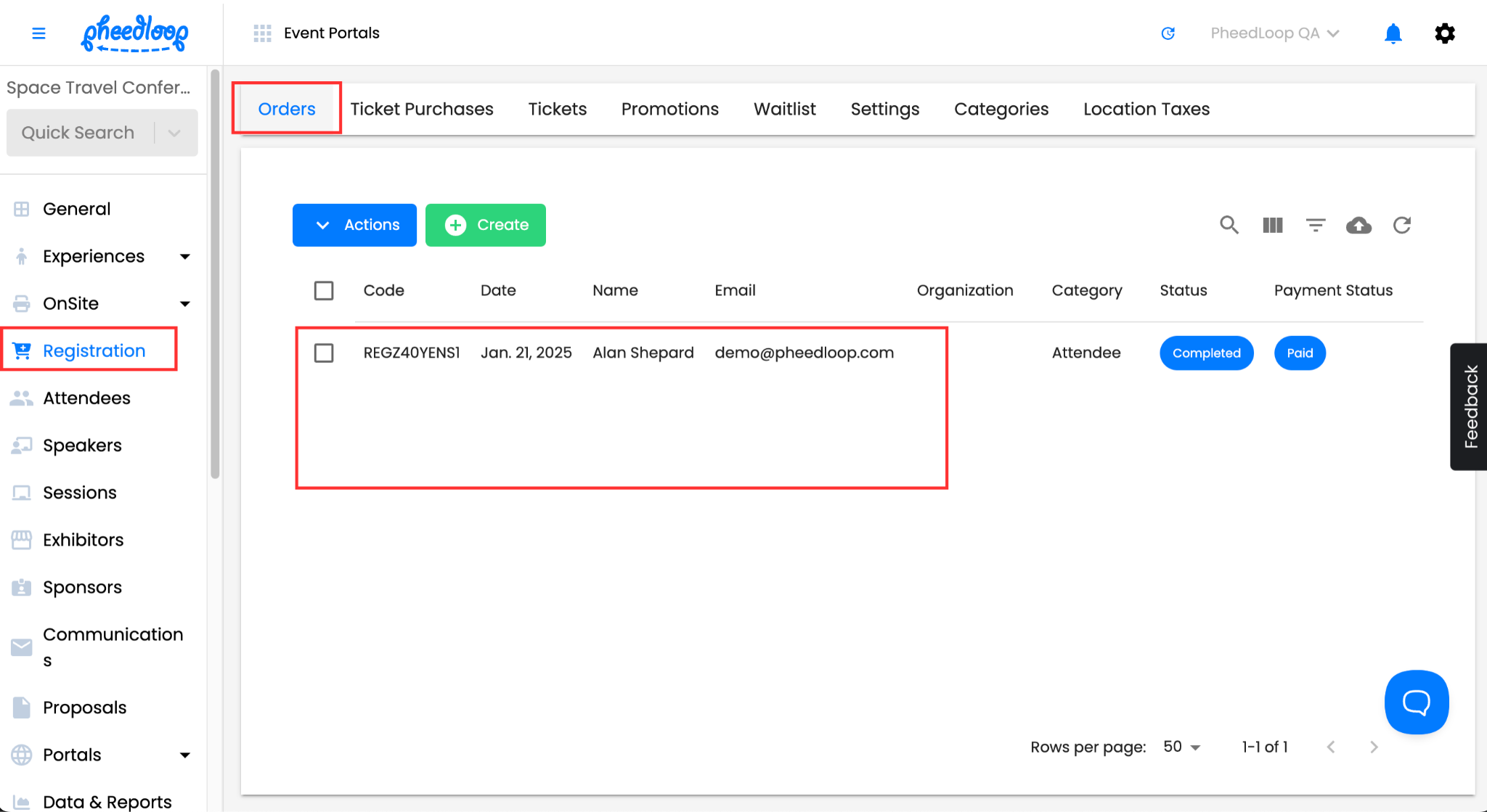
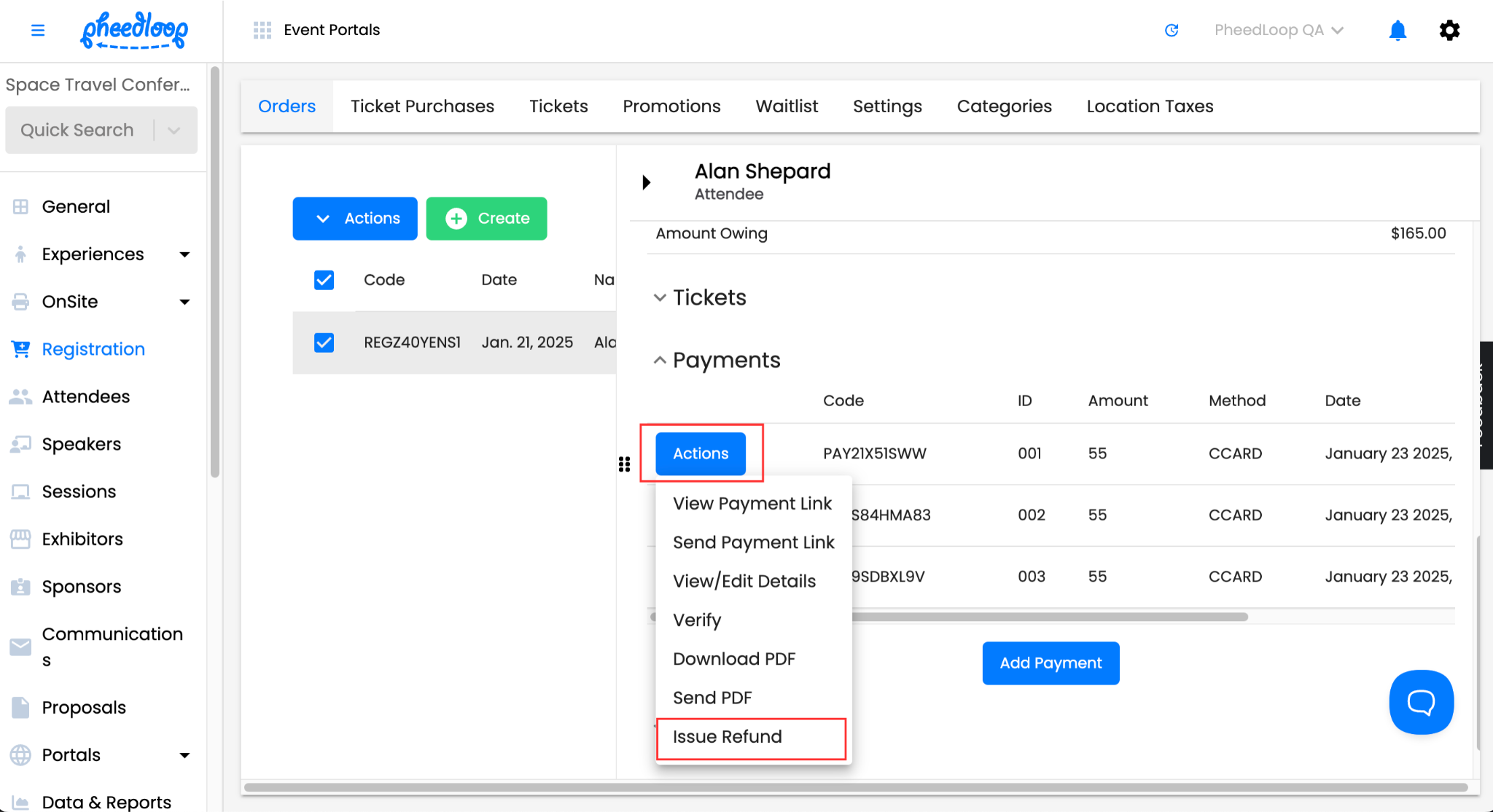
- Scroll down to Payments
-
Select Actions > Issue Refund
- Under the Refund Amount field, enter the amount to be refunded
-
Leave the Process refund through Stripe checkbox on
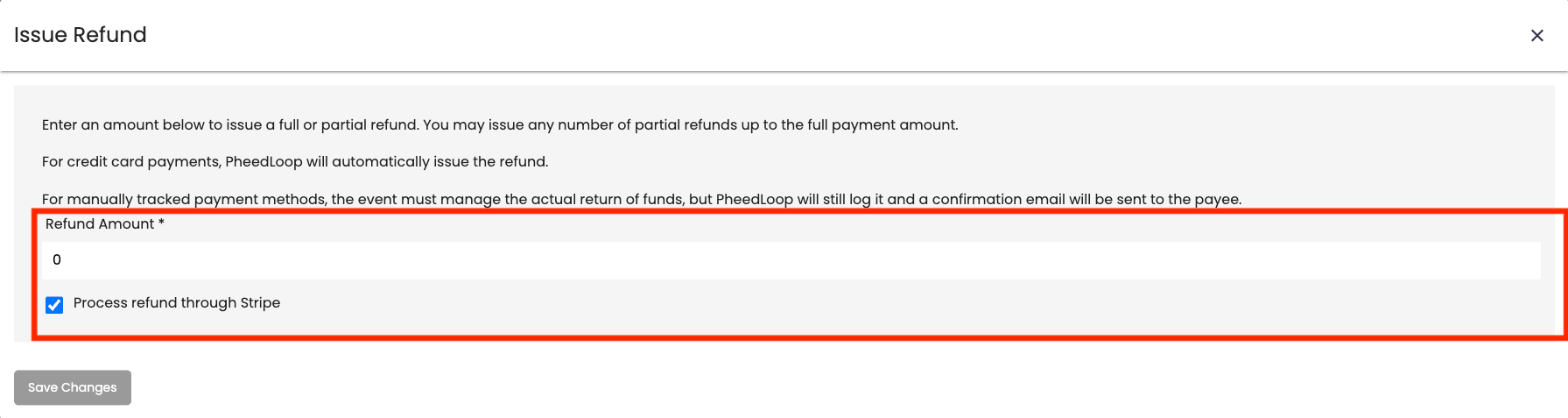
- Select Save Changes
The refund will now be processed in both the Event Dashboard and Stripe. No additional actions are necessary.
Conducting Refunds in Stripe
To refund the full amount, including all transaction fees, your organization should process it directly through the Stripe dashboard. For instructions, please refer to Stripe's documentation available here.
Recording the refund in the Event Dashboard
Once your refund has been processed, record the same refund in the Event Dashboard for record-keeping purposes. Follow the same steps as before, but ensure the Process refund through Stripe checkbox is toggled off. This way, the attendee is not refunded twice when completing the refund.

The attendee will now receive an email from PheedLoop confirming their refund has been processed.