Getting Started with the PheedLoop Event Portal
The Event Portal is the PheedLoop hub for all things pre- and post-event for all of your stakeholders, including Attendees, Speakers, Sponsors, and Exhibitors. The tools each stakeholder has access to within the Event Portal depend on their role in your event, so there's no need to worry about Exhibitors seeing Speaker tools or vice versa.
Here are some actions that each stakeholder has access to in the Event Portal:
- Attendees: ticket transfers, schedule selection, task completion, profile editing
- Speakers: session & profile editing, speaker contract completion, task completion
- Sponsors & Exhibitors: uploading design elements, adding managers, enabling booth selection (Exhibitors only), enabling Lead Retrieval (Exhibitors only), task completion
As an Event Admin, you have full control over what pages are visible to each stakeholder, allowing you to customize your Event Portal experience.
Contents
- How Can I Access the Event Portal as an Event Admin?
- How Can I Share the Event Portal with my Event's Stakeholders?
- Event Portal Customization Options
- Frequently Asked Questions
How Can I Access the Event Portal as an Event Admin?
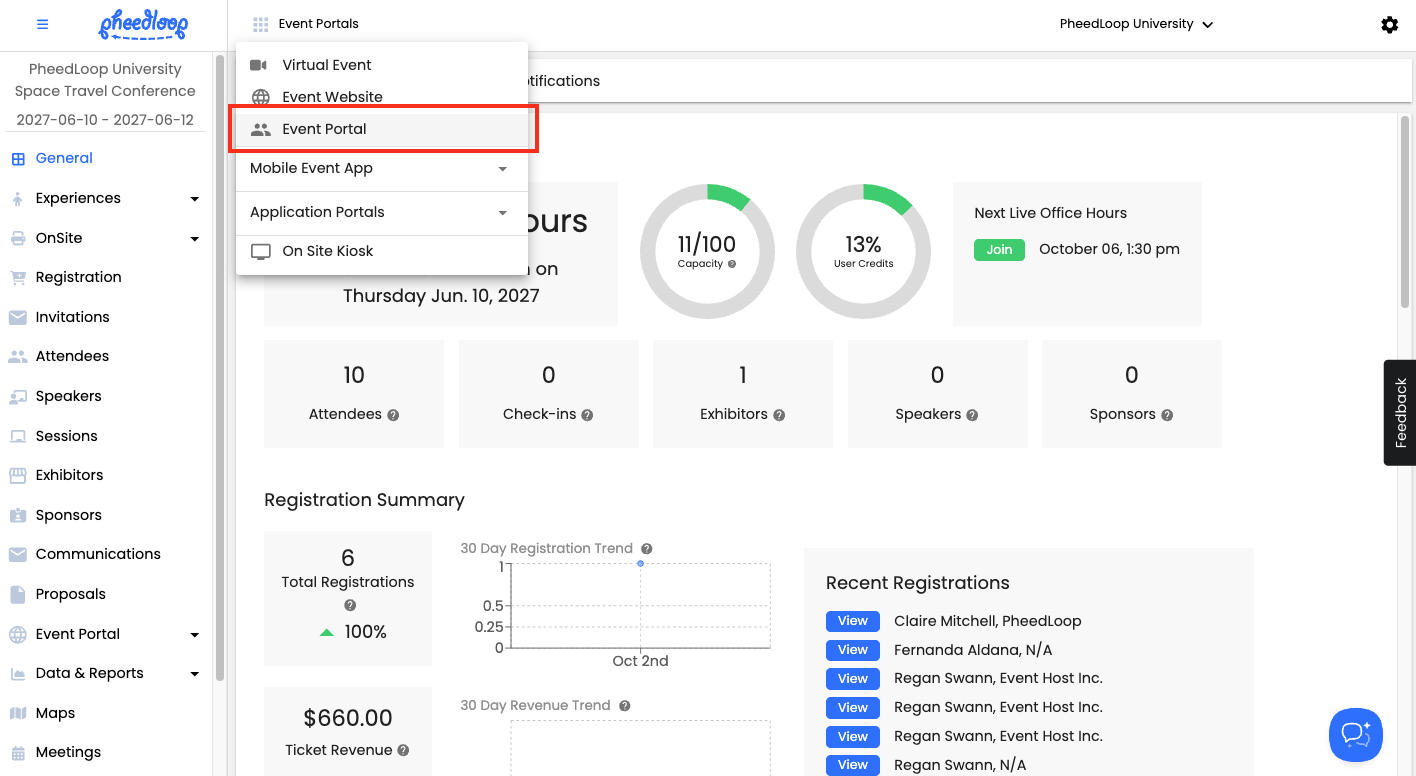
- From the Event Dashboard, navigate to Event Portals > Event Portal.
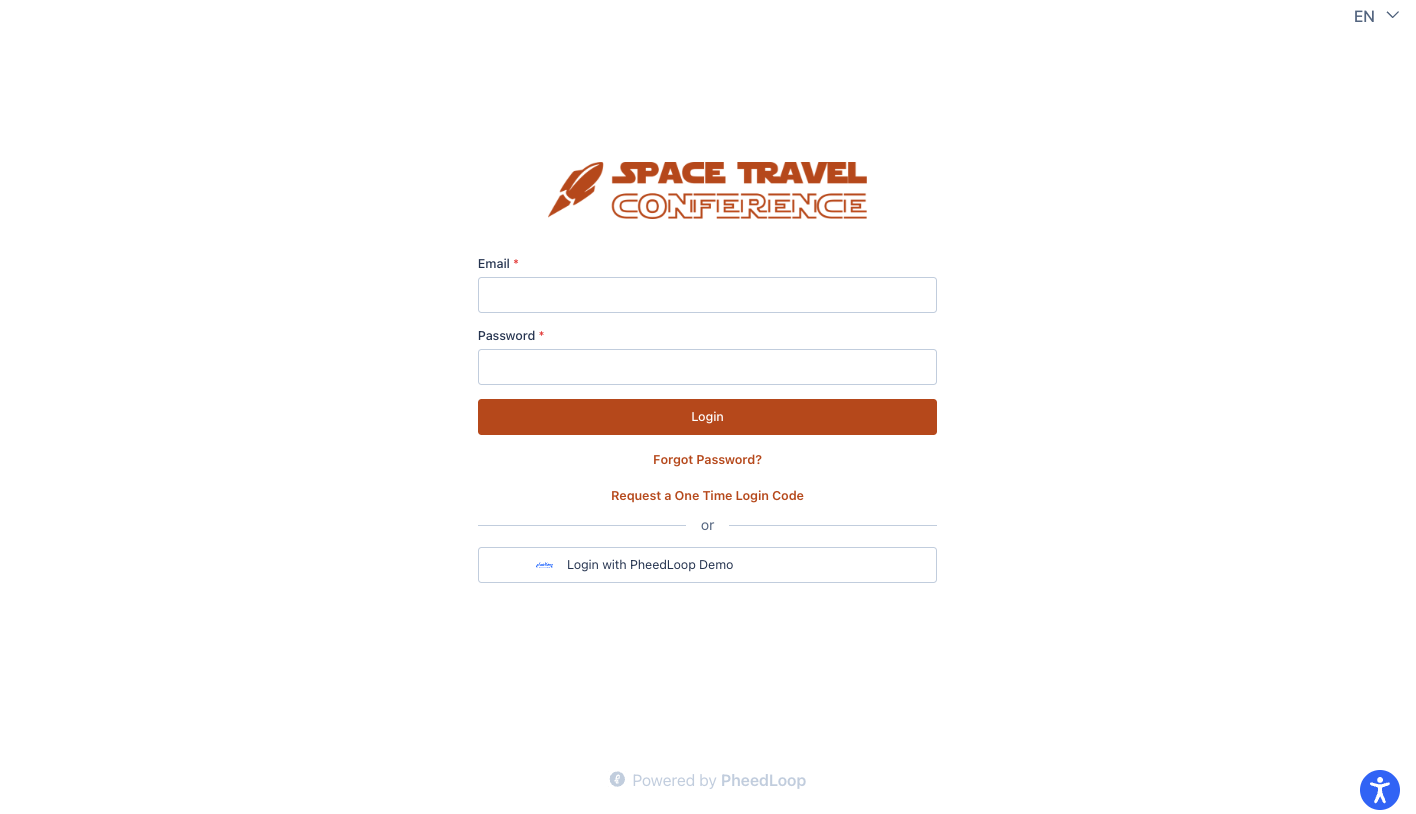
- Log in with your Event Admin credentials. You may also request a One-Time Login Code if you'd prefer.
How Can I Share the Event Portal with My Event's Stakeholders?
There are two primary ways to share the Event Portal with your event's Attendees, Speakers, Sponsors, and Exhibitors:
Option 1: Using PheedLoop's Default Welcome Email Templates
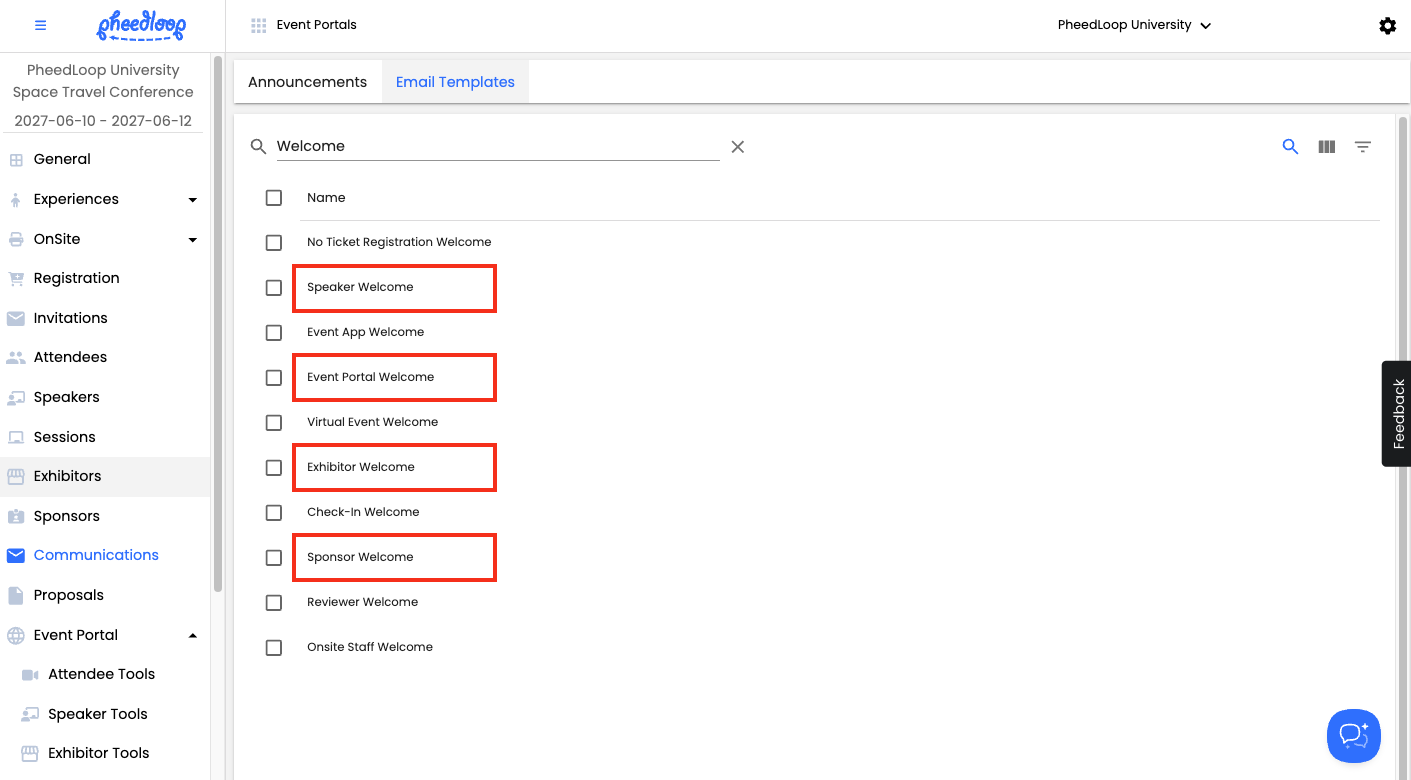
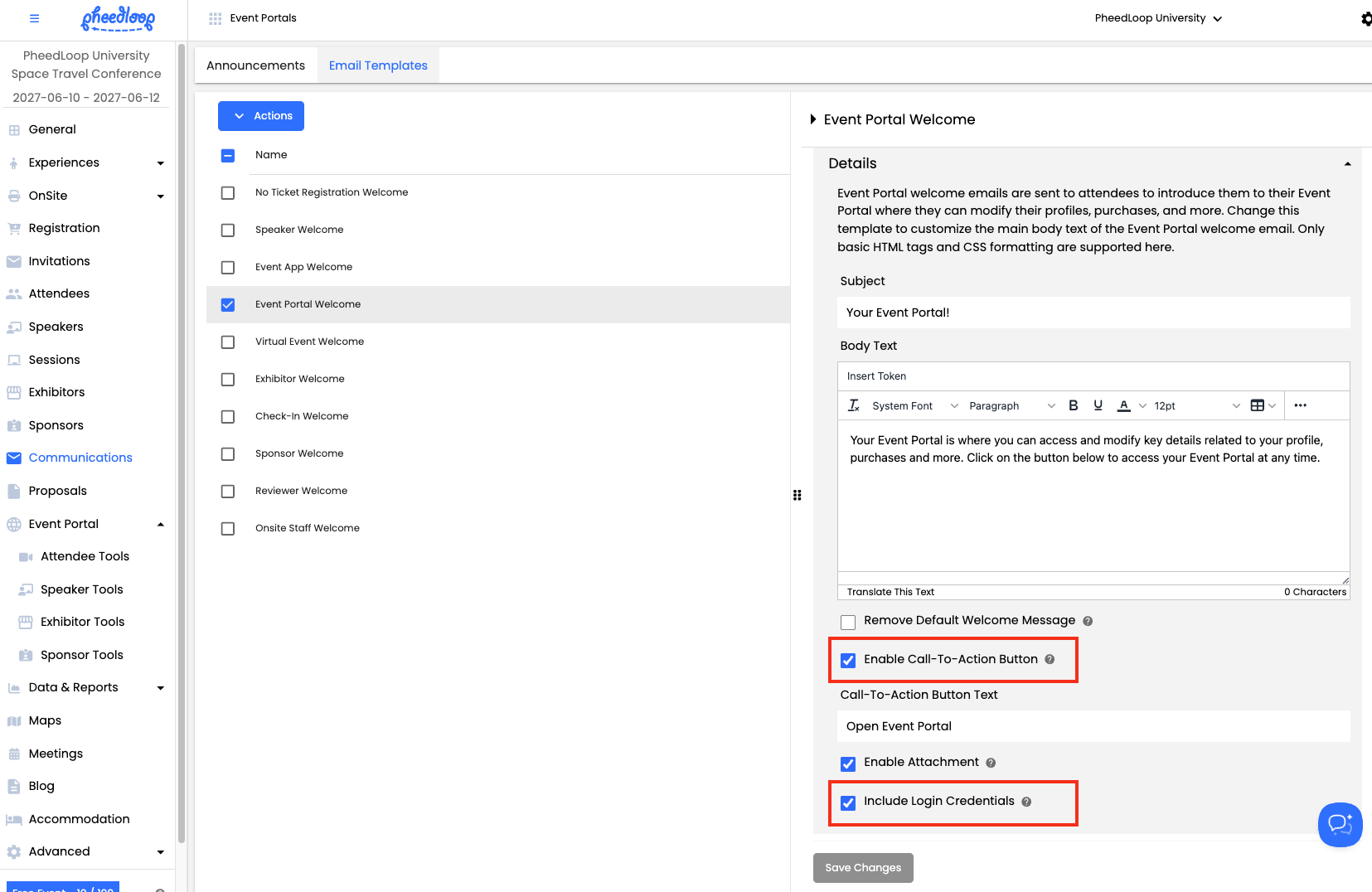
- Navigate to Communications > Email Templates > search and select Event Portal Welcome, Speaker Welcome, Sponsor Welcome, or Exhibitor Welcome, depending on which stakeholder you'd like to share the Event Portal with.
- Note: The Event Portal Welcome email template can be used to share this portal with general Attendees.
- Adjust the email's Subject and Body Text as desired, customizing it to your event. Ensure that you leave Enable Call-To-Action Button toggled on, as this will ensure that recipients can access the Event Portal from this communication.
- Quick Tip: Leave Include Login Credentials toggled on as well so that recipients receive their login credentials within the email body.
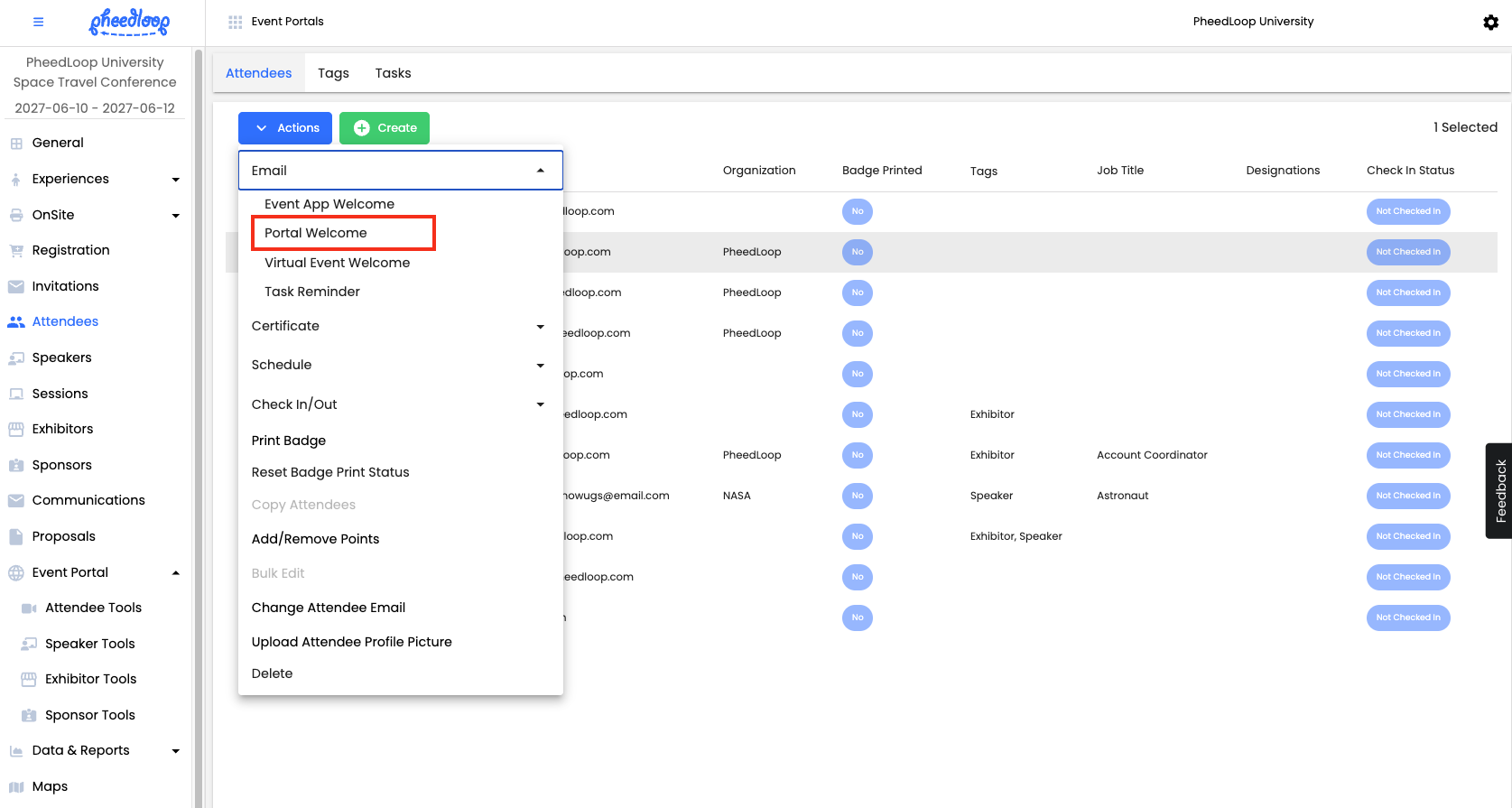
- When you are ready to send your Welcome Email, navigate to the relevant page of your Event Dashboard, depending on which stakeholder you'd like to target (Attendee, Speaker, Sponsor, Exhibitor).
- For Attendees, select the desired Attendee(s) > Actions > Email > Portal Welcome.
- For Speakers, Sponsors, and Exhibitors, Actions > Send Welcome Email.
Option 2: Sending the Event Portal URL
If you'd prefer to send the Event Portal URL directly, you can simply copy the URL of your Event Portal's login page and send it as desired. The recipient of this URL will still be prompted to log in with their credentials and/or can request a One-Time Code to log in.
The URL should be formatted as: https://site.pheedloop.com/portal/event/{EVENT CODE}/portal/login
Event Portal Customization Options
All the settings for the Event Portal can be found in the Event Dashboard by navigating to Event Portal > select the Tools you wish to edit (Attendee, Speaker, Sponsor, Exhibitor).
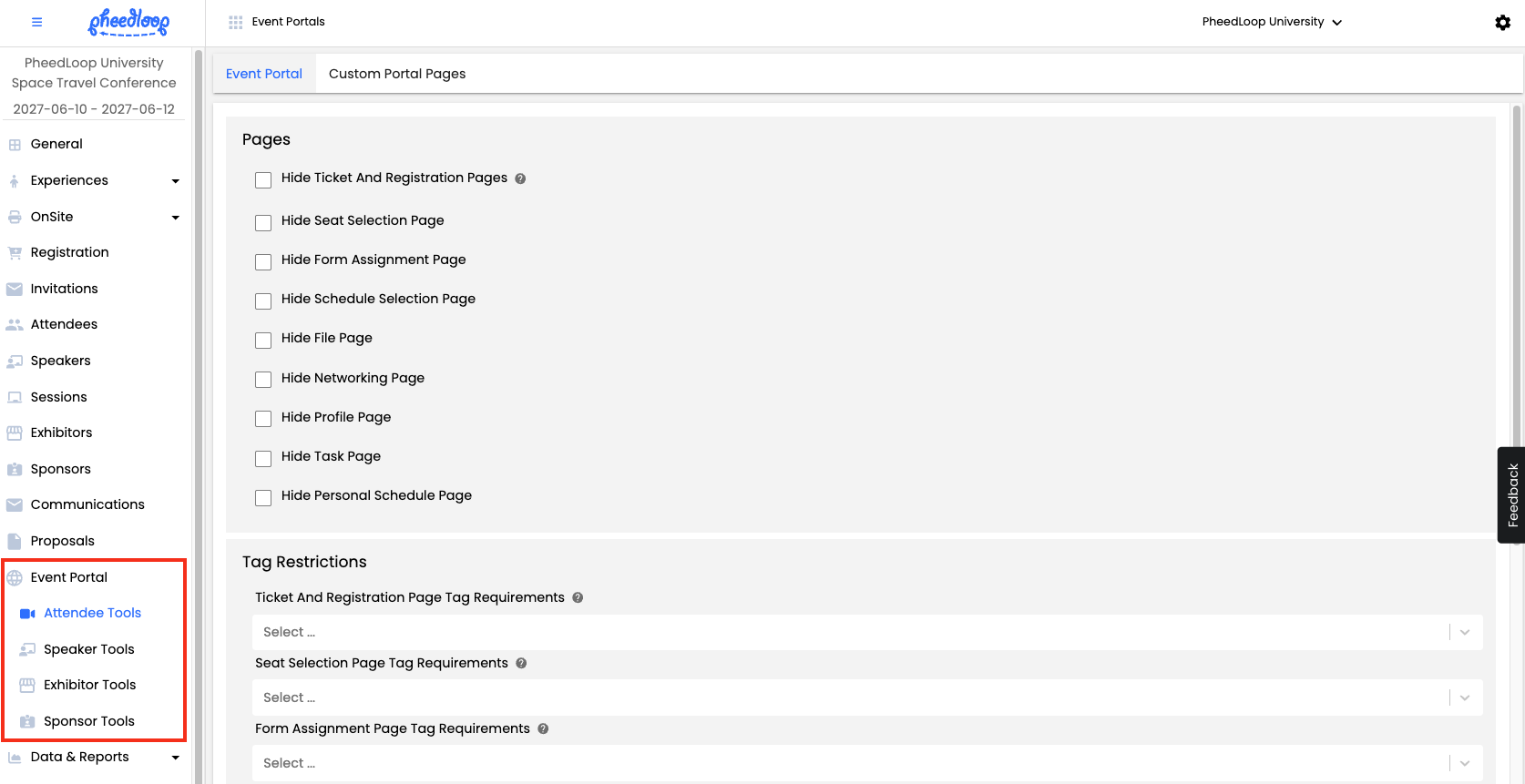
For each set of Tools, you can hide certain pages and lock specific edits from being made. It is recommended to familiarize yourself with each of the pages and hide any that may not be relevant to your event's use case.
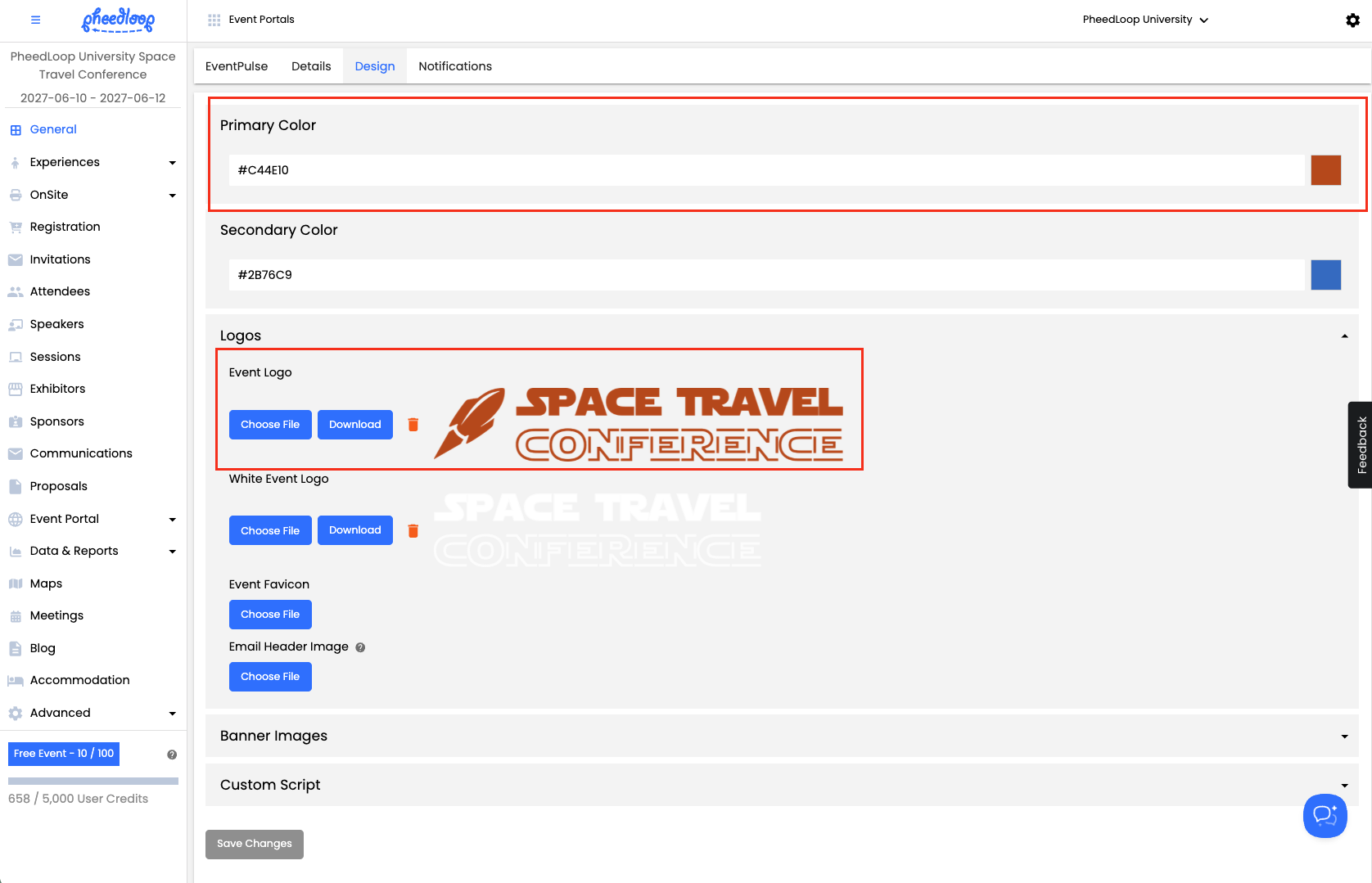
The Event Logo and Primary Color set under General > Design will automatically populate within your Event Portal, so there's no need to re-upload assets.
Frequently Asked Questions
How will what I see in the Event Portal as an Event Admin differ from my stakeholders?
As an Event Admin, you will have access to all Tools in the Event Portal, including those for Attendees, Speakers, Sponsors, and Exhibitors.
You will also be able to toggle between Sponsor and Exhibitor company profiles. Stakeholders will only be able to view the Tools that are relevant for them, and Sponsors and Exhibitors will only be able to access their profile and are not able to access or toggle between any other company profiles.
How can I add custom text for my Attendees, Speakers, Sponsors, and Exhibitors within the Event Portal?
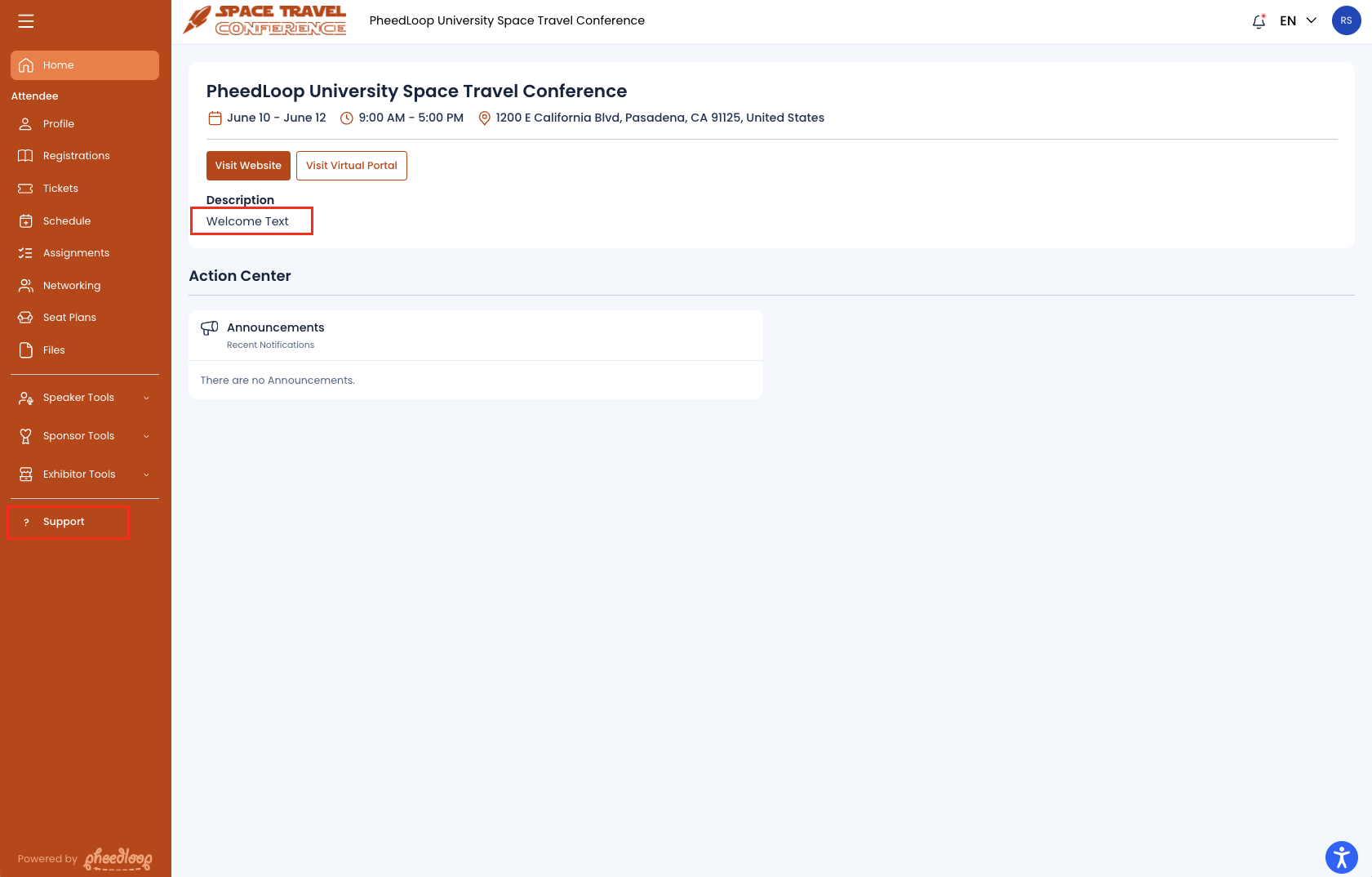
Each stakeholder has dedicated Support Details and Welcome Text fields that are accessible from the Event Dashboard by navigating to Event Portal > clicking into the relevant Tools menu > General.
Support Details will populate within a dedicated Support page of the Event Portal while Welcome Text will populate within the Home page. Each will only be visible to the stakeholder type it was set for.
How can I create my own custom pages within the Event Portal?
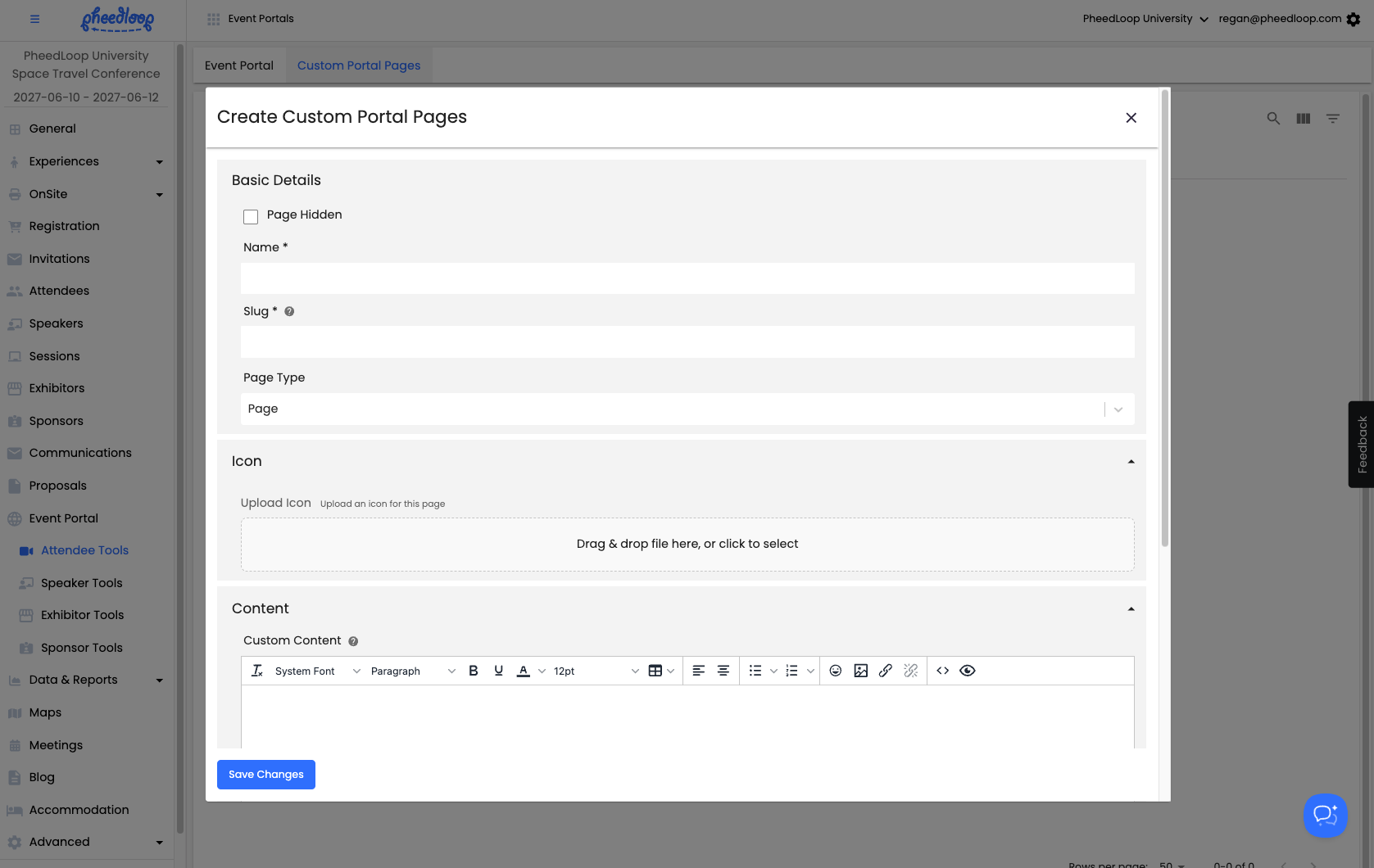
To create a custom page within the Event Portal, access your Event Dashboard and navigate to Event Portal > clicking into the relevant Tools menu > Custom Portal Pages. From here, click the green Create button and input your page's name and custom content.