How to Access the Event App as an Attendee
When an organization decides to incorporate PheedLoop Go! into their event, Attendees will have access to the app. Using PheedLoop Go! is necessary for many features including Gamification, Meeting Booking, Raffles, and many more.
This article will walk you through accessing PheedLoop Go! and some commonly used pages during Events.
Contents
- Step 1 - Downloading PheedLoop Go!
- Step 2 - Logging Into PheedLoop Go! With A One Time Passcode
- Logging into PheedLoop Go! with a password
- Conclusion
Step 1 - Downloading PheedLoop Go!
The first step is to download PheedLoop Go! on your device.
Once downloaded, you can proceed to the next step.
Step 2 - Logging Into PheedLoop Go! With A One Time Passcode
PheedLoop supports one-time password logins through email for PheedLoop Go! With this feature, attendees can simply send a code to their email and enter the corresponding code to login. Passcodes are only valid for 10 minutes before a new one needs to be sent.
Please note, this feature is only available to users who have created a PheedLoop account. It is not possible to use this feature to create new accounts.
- From your mobile device, open PheedLoop Go!
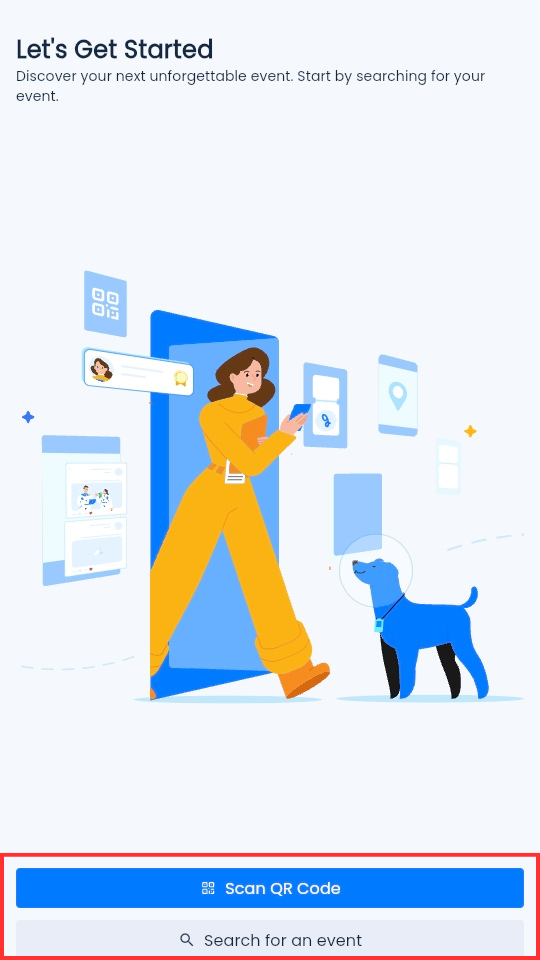
- Select Scan QR Code to scan the QR code for the event
-
Alternatively, select Search for an event and search for the event name.
-
Once you find the event, you'll be taken to the login screen to sign in with your account.
- Under the Email field, enter your email address
- Select Sign In with Email
-
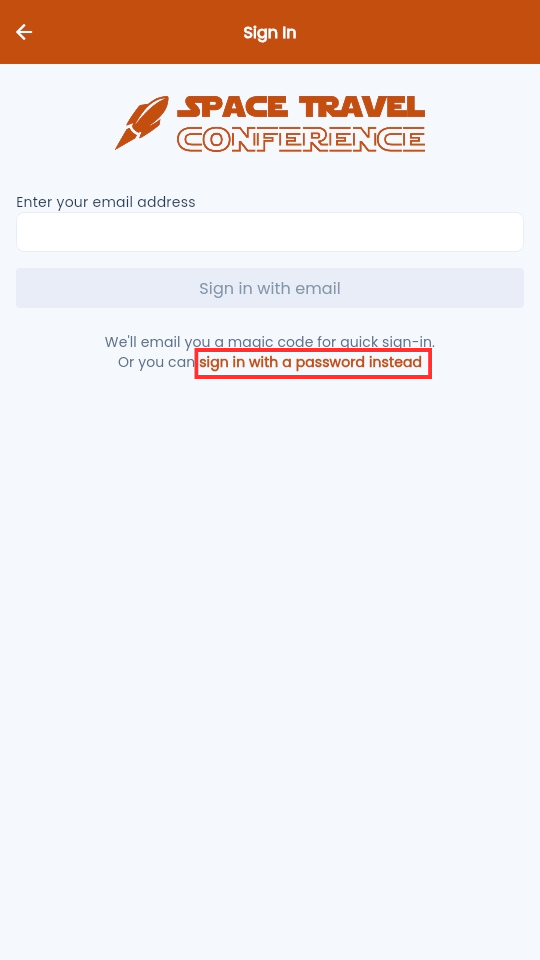
If you would like to login with the password instead, select sign in with a password instead
-
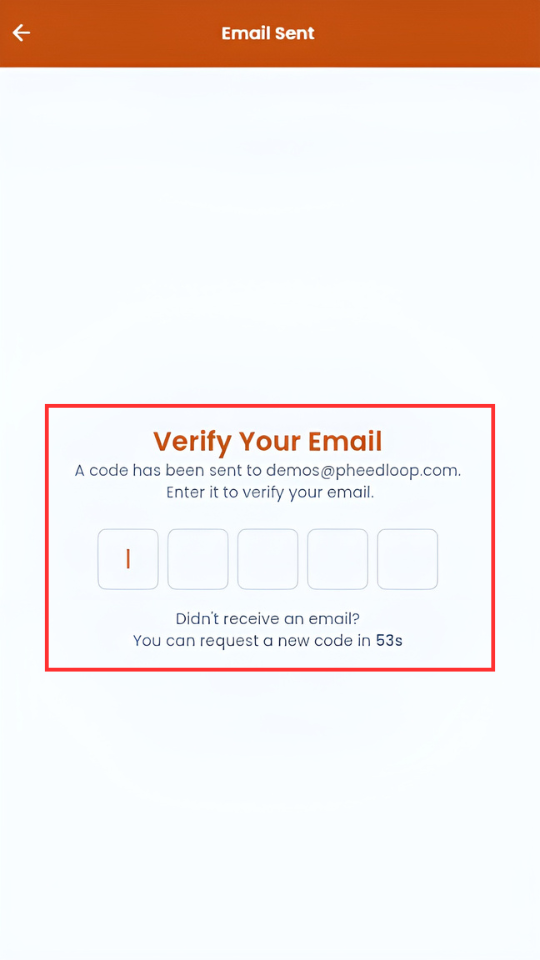
- Open your email and copy the verification code sent
-
Copy and paste the code into PheedLoop Go!
If successful, you will be taken to the Event Selection page, where you can open the event you have registered for. We suggest checking your email for your account to ensure you have logged in with the correct email address. If you have logged in but cannot see your event, please reach out to your Event Organizer to confirm your email address has been added as an attendee.
I have a PheedLoop account but the app cannot find my email, what do I do?

If you are experiencing the we could not find an account with that email address error message and you are certain you have created a PheedLoop account, reach out to the event administrators for support. The most common explanation is that the email address entered during registration is different from the one you are trying to login with or spelt incorrectly. Event administrators change the email for your registration, and once corrected, you will be able to login through one time password.
Step 2A - Logging into PheedLoop Go! with a password
While PheedLoop Go! supports one time password by default, attendees can still login with their password if preferred.
- From your mobile device, open PheedLoop Go!
-
On the login page select sign in with a password instead
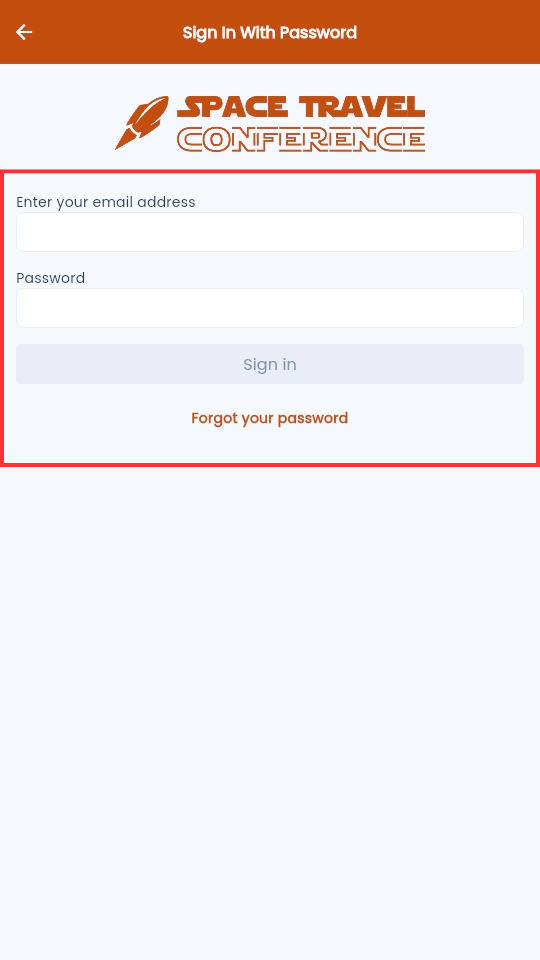
- Under the Email field, enter your email address
- Under the Password field, enter your password
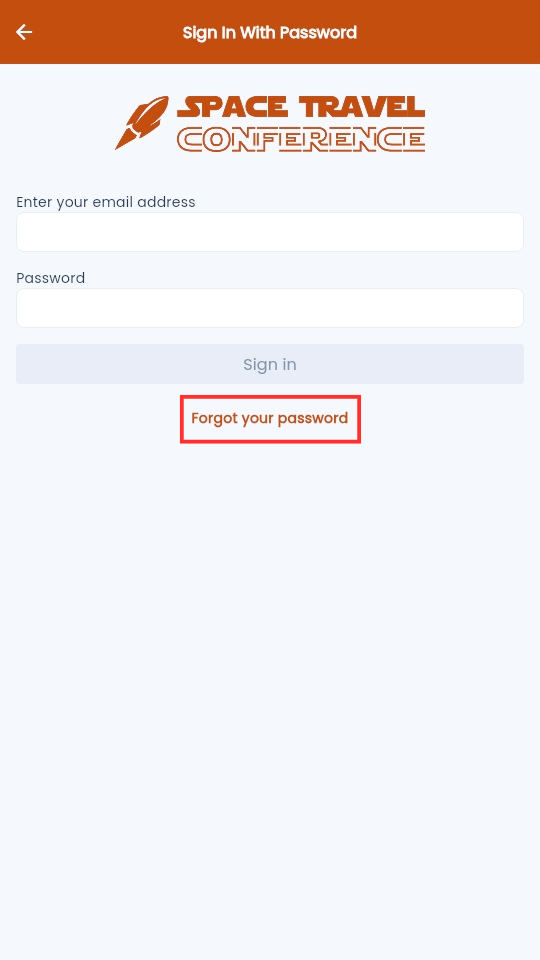
- Select Forgot your password if you need to reset your password
-
Select Login
Resetting Attendee Passwords in PheedLoop Go!
If you cannot login, ensure the email address and password you have entered are correct. If you are certain you have entered the correct email address, then reset your password:
-
From the login page, select the Forgot Password button
- Enter your email address
- Select Submit
An email will now be sent, allowing you to reset your password. If you do not receive an email, contact the Event Administrator to confirm that your email address has been added to their Event.
Resetting Attendee Passwords in PheedLoop Go!
If you cannot login, ensure the email address and password you have entered are correct. If you are certain you have entered the correct email address, then reset your password:
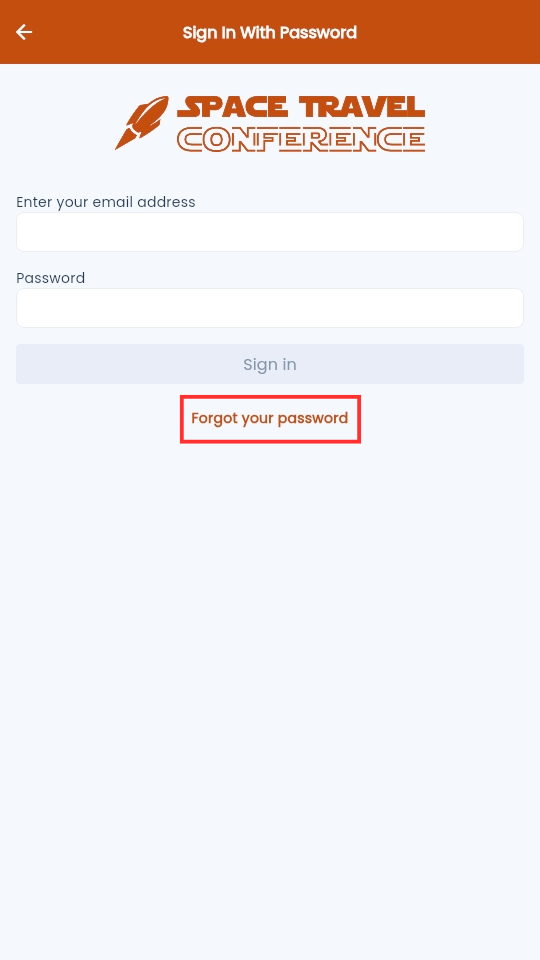
- From the login page, select the Forgot Password button
- Enter your email address
-
Select Submit
An email will now be sent, allowing you to reset your password. If you do not receive an email, contact the Event Administrator to confirm your email address is added in their Event.
Conclusion
Accessing PheedLoop Go! is an essential step for attendees. This guide provides all the necessary information for a smooth login process, along with troubleshooting steps and points of escalation to resolve any potential issues.